

As an Amazon Associate, I earn from qualifying purchases
Yes, the MacBook Air M3 can handle 4K video editing. It is a good choice for YouTube videos, travel films, social media content, interviews, and short documentaries. However, if you regularly edit long 4K projects, work with multiple video layers, apply heavy effects, or export videos throughout the day, the MacBook Pro is the better option because its active cooling helps it maintain performance during demanding tasks. The MacBook Air M3 supports hardware acceleration for H.264, HEVC, ProRes, and ProRes RAW video formats.
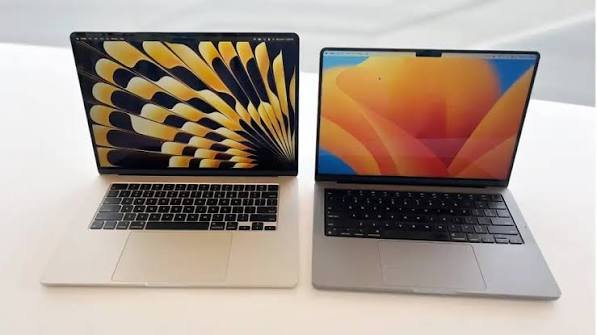
Best overall for occasional 4K editing: MacBook Air M3 with 16GB or 24GB unified memory.
Best for regular professional editing: MacBook Pro with a suitable M3 Pro chip configuration, or another Pro model that fits your editing workload.
Best value for beginner creators: MacBook Air M3 with 16GB memory and enough storage for your footage.
MacBook Air M3 vs MacBook Pro for Video Editing: Quick Comparison
| Feature | MacBook Air M3 | MacBook Pro M3 |
| 4K video editing | Good for light to moderately complex projects | Better for demanding and sustained workloads |
| Cooling | Fanless design | Active cooling with fans |
| Short editing sessions | Very capable | Very capable |
| Long exports | Can slow down under sustained heavy workloads | Better suited to sustained performance |
| Display | Liquid Retina, up to 500 nits | Liquid Retina XDR, higher brightness and contrast |
| Refresh rate | Standard refresh rate | ProMotion up to 120Hz on supported models |
| Portability | Lightweight and silent | Heavier, with more cooling hardware |
| External connections | Two Thunderbolt/USB 4 ports, MagSafe and headphone jack | More ports, including HDMI and an SDXC card slot on supported configurations |
| Best audience | Students, beginners, YouTubers and mobile creators | Professional editors and creators with demanding workloads |
Specifications vary by screen size and configuration. The comparison above refers mainly to the M3-generation MacBook Air and 14-inch MacBook Pro, rather than every MacBook Pro configuration.
1. Can the MacBook Air M3 Edit 4K Video Smoothly?
Yes. The MacBook Air M3 has enough processing power to handle many everyday 4K editing projects in applications such as Final Cut Pro, Adobe Premiere Pro, and DaVinci Resolve.
The M3 chip includes hardware-accelerated media engines for several common video formats. These specialized components help with supported video decoding and encoding tasks, so the computer does not have to rely entirely on general-purpose CPU processing.
This is important because 4K editing is not determined by resolution alone. The footage format, number of clips, effects, color grading, timeline complexity, and editing software can all affect performance.
What can you edit on the MacBook Air M3?
The Air M3 is suitable for projects such as:
- YouTube videos recorded in 4K.
- Travel videos and vacation footage.
- TikTok, Instagram Reels, and other short-form content.
- Talking-head videos and interviews.
- Educational videos and online courses.
- Product reviews and unboxing videos.
- Wedding highlight videos with moderate editing requirements.
- Short promotional videos for small businesses.
For these projects, the Air M3 can provide a responsive editing experience when the project is properly configured.
For example, imagine that you record a 4K video for YouTube. You cut out mistakes, add background music, include a few titles, adjust the colors, and export the final video in 4K. The MacBook Air M3 is a reasonable machine for that type of workflow.
The experience becomes more demanding when you combine multiple 4K camera angles, complex transitions, noise reduction, motion graphics, and several adjustment layers. At that point, the MacBook Pro becomes more attractive.
Does the Air M3 struggle with 4K footage?
Not necessarily. Many users can edit 4K footage comfortably on the Air M3, but the experience depends on the project.
A single-camera project with basic cuts is very different from a professional timeline containing several high-bitrate streams, animated graphics, and advanced color effects.
Independent testing of the M3 MacBook Air has also shown that it can perform well in video-related workloads, although the absence of active cooling can limit sustained performance during longer, demanding tasks.
The important takeaway is that 4K video editing is possible on the MacBook Air M3, but not every 4K workflow is equally easy to handle.
2. MacBook Air M3 vs MacBook Pro M3: Performance Differences
The biggest difference between these laptops is not simply that one has the word “Pro” in its name. The cooling system, GPU configuration, memory capacity, display, and available ports can all influence your editing experience.
MacBook Air M3 performance
The MacBook Air M3 uses Apple’s M3 chip and has a fanless design. That means it operates silently because there is no internal cooling fan.
This is excellent when editing in a quiet room, studying in a library, recording voiceovers, or working in a shared office.
The M3 chip also includes hardware acceleration for several popular video codecs. Supported media tasks can benefit from those dedicated engines, making the Air more capable than its thin design might suggest.
However, the fanless design has a limitation. When the processor and GPU remain under heavy load for an extended period, the laptop may reduce performance to control temperatures.
You might notice this during repeated exports, intensive rendering, or demanding effects processing. The Air can still complete the task, but it may take longer than a similarly configured MacBook Pro with active cooling.
MacBook Pro M3 performance
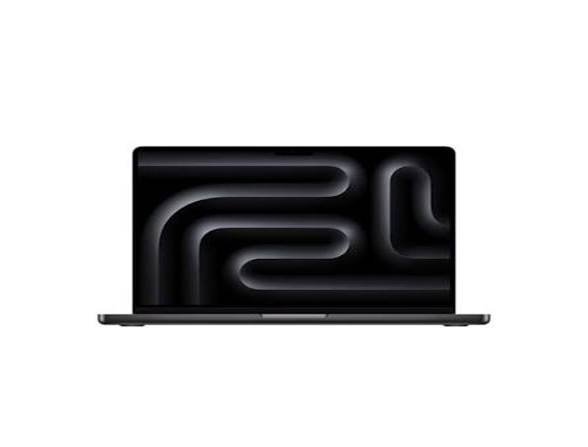
The 14-inch MacBook Pro with the standard M3 chip uses active cooling. Its fans help remove heat during sustained workloads, allowing it to maintain performance more effectively during long editing sessions.
Independent comparisons have found the 14-inch M3 MacBook Pro finishing a 4K-to-1080p video transcoding test faster than the 15-inch M3 MacBook Air in one HandBrake benchmark. That result illustrates the potential benefit of active cooling, although the exact difference depends on the application and workload.
The MacBook Pro also offers a better display for many editing tasks. Its Liquid Retina XDR screen provides higher contrast and stronger HDR brightness than the Air’s standard Liquid Retina display. The ProMotion refresh rate can reach 120Hz on supported models.
This is useful when reviewing footage, working with detailed timelines, or evaluating high-dynamic-range material.
Do not confuse M3 with M3 Pro
This distinction matters when shopping.
The standard M3 MacBook Pro is not the same as a MacBook Pro equipped with an M3 Pro or M3 Max chip. The higher-tier chips offer different CPU and GPU configurations and are designed for more demanding workloads.
If you edit professionally, compare the exact chip and memory configuration rather than choosing a laptop based on its name alone.
A MacBook Pro with an M3 Pro chip can be a stronger long-term editing machine than the standard M3 model, particularly for complex timelines, multicamera projects, and GPU-heavy effects.
3. How Much RAM Do You Need for 4K Video Editing?
Memory is one of the most important choices when buying a MacBook for video editing.
The MacBook Air M3 was offered with different unified memory configurations, including 8GB, 16GB, and 24GB options depending on the original configuration and upgrades. The MacBook Pro M3 family also has different memory options depending on the model.
Here is a practical guide.
| Unified memory | Recommended use |
| 8GB | Basic edits and smaller projects; not ideal for serious 4K work |
| 16GB | A sensible starting point for most beginner and intermediate editors |
| 24GB | Better headroom for larger timelines, multitasking, and demanding projects |
| 36GB or more on suitable Pro configurations | Useful for professional workflows, large projects, and intensive applications |
Is 8GB enough for 4K editing?
It can work for simple projects, especially if you use efficient codecs and proxy media. However, 8GB gives you less room for editing software, background applications, browser tabs, and large timelines.
Because unified memory is shared across the CPU and GPU, video editing can use a substantial portion of the available capacity.
If you plan to edit 4K video regularly, 16GB is the more sensible starting point. If your budget allows and you expect your projects to grow, consider 24GB on the Air or an appropriate higher-memory Pro configuration.
Can you upgrade the RAM later?
You should choose your memory configuration carefully when purchasing. MacBook Air and MacBook Pro memory is integrated into the system rather than being a typical user-upgradable RAM module.
That makes buying enough memory at the beginning particularly important.
For a beginner who mainly edits YouTube videos, 16GB may be sufficient. For a creator who plans to edit multicamera footage, use advanced effects, and keep several applications open, additional memory can provide more flexibility.
4. Which MacBook Is Better for Final Cut Pro?
Both laptops can run Final Cut Pro, but the best choice depends on how complex your projects are.
Final Cut Pro on the MacBook Air M3
The Air M3 is a practical choice for creators who want to edit videos without spending more on a professional workstation.
It can handle common editing tasks such as:
- Cutting and arranging clips.
- Adding titles and transitions.
- Adjusting basic color settings.
- Adding music and voiceovers.
- Exporting social media videos.
- Editing straightforward 4K projects.
For many YouTubers and beginner filmmakers, this is enough.
You can also improve the experience by keeping your project organized, avoiding unnecessary background applications, and using proxy media for particularly demanding footage.
Final Cut Pro on the MacBook Pro
The Pro is the stronger choice if video editing is a major part of your working day.
Its cooling system helps during longer exports and demanding processing. The display also offers better contrast and HDR capabilities, which can be helpful when evaluating footage.
If you edit professionally for clients, deadlines matter. Spending less time waiting for renders or recovering from a sluggish timeline can justify paying more for a suitable Pro configuration.
However, not every editor needs a high-end MacBook Pro. If your projects are relatively simple, the Air M3 may already provide the performance you need.
5. Which MacBook Is Better for Adobe Premiere Pro?
Adobe Premiere Pro can also work well on the MacBook Air M3, particularly for straightforward 4K projects.
The application can take advantage of supported hardware acceleration, but the actual editing experience depends on the codec, effects, footage, project settings, and Premiere Pro version.
When the Air M3 is enough
Choose the Air if you mostly:
- Edit one or two video tracks.
- Work with standard H.264 or HEVC footage.
- Make short YouTube videos.
- Add basic text, transitions, and audio.
- Export a few videos each week.
- Prefer a lightweight laptop for travel.
For this type of work, the Air can be a cost-effective choice.
When the Pro makes more sense
Consider the Pro if you regularly:
- Work with multiple camera angles.
- Use demanding effects and motion graphics.
- Edit long-form projects with many layers.
- Process large amounts of footage every day.
- Need faster sustained rendering.
- Work with high-resolution external displays.
Premiere Pro performance can vary considerably between projects. A complex timeline with several effects may be much harder to run than a simple timeline using the same 4K source footage.
If you edit professionally, make your decision based on your real workload rather than relying on resolution alone.
6. Can the MacBook Air M3 Handle DaVinci Resolve?
Yes, the MacBook Air M3 can run DaVinci Resolve, but the type of work you perform matters.
DaVinci Resolve combines video editing, color correction, visual effects, and audio post-production. Some of these tasks can place a heavy load on the GPU and unified memory.
Basic editing and color correction
For cutting clips, arranging a timeline, making basic color adjustments, and exporting ordinary projects, the Air M3 can be a useful starting point.
If you are learning video editing or producing content for social media, you may not need the power of a higher-end MacBook Pro.
Advanced color grading and visual effects
More demanding Resolve projects can be a different story.
Heavy noise reduction, complex Fusion compositions, multiple nodes, and several high-resolution video streams can increase processing requirements. In these situations, a MacBook Pro with a higher-tier chip and more memory is generally a better fit.
You can still work on an Air, but you may need to use lower playback resolution, optimized media, or proxies.
If DaVinci Resolve is your main professional tool, consider your most demanding project before purchasing a laptop.
7. Does the MacBook Air M3 Overheat During Video Editing?
The MacBook Air M3 can become warm during demanding editing sessions. That is not automatically a sign that something is wrong.
The laptop is fanless, so it relies on passive cooling. Under sustained heavy loads, it can reduce its performance to manage heat. This behavior is commonly described as thermal throttling. Independent testing has documented this limitation during prolonged video encoding.
What does thermal throttling mean for editing?
It means that the Air may not maintain its highest performance indefinitely during a long, intensive task.
For example, a short export may finish quickly, while repeated exports or a longer rendering job may take more time as the laptop manages its temperature.
The Pro’s active cooling gives it an advantage during sustained workloads. That does not mean the Air cannot edit 4K footage; it means the Pro is better suited to work that keeps the CPU or GPU busy for extended periods.
How to improve the Air’s editing experience
Try these practical steps:
- Work on a hard, flat surface. Avoid soft surfaces that obstruct normal heat dissipation.
- Close unnecessary applications. Freeing memory and reducing background activity can help.
- Use proxy media when needed. Proxies reduce the processing load during editing.
- Keep your project organized. Remove unused media and render files when appropriate.
- Allow time for long exports. Avoid expecting the same performance from every project.
- Keep macOS and editing software updated. Updates may include performance and compatibility improvements.
- Use external storage for large media libraries. This can help you manage space on the internal SSD.
These steps cannot turn the Air into a MacBook Pro, but they can make editing more manageable.
8. Is the MacBook Air M3 Display Good Enough for Video Editing?
The Air’s display is good enough for many creators, including those who edit 4K videos.
The M3 Air has a Liquid Retina display with support for a wide P3 color gamut and up to 500 nits of brightness. The 14-inch M3 MacBook Pro has a Liquid Retina XDR display with stronger contrast, higher HDR brightness, and ProMotion up to 120Hz.
Why the Air display is sufficient for many users
You can use the Air to review footage, cut clips, add titles, adjust colors, and prepare videos for YouTube or social media.
For beginner and intermediate editing, the screen is generally capable enough for everyday creative work.
Why professionals may prefer the Pro
The Pro’s XDR display can be especially useful for HDR workflows and scenes with bright highlights and deep shadows. Its higher contrast can make it easier to evaluate image details.
However, buying a MacBook Pro does not automatically guarantee accurate color grading. Your workflow, display settings, viewing environment, and color-management practices also matter.
If your work depends on strict color accuracy, consider a suitable calibrated external monitor as part of your setup.
9. How Much Storage Do You Need for 4K Video Editing?
Storage is another important consideration. 4K footage can consume a substantial amount of space, especially when you keep original camera files, proxies, render files, audio, graphics, and exported versions.
A 256GB SSD may become restrictive quickly if you edit frequently. It can work for small projects if you manage files carefully and rely on external storage, but it leaves less room for applications and active projects.
For most people buying an Air M3 for regular 4K editing, a 512GB SSD is a more comfortable starting point. A 1TB drive can be more convenient if you keep multiple projects on the laptop.
| Storage capacity | Best for |
| 256GB | Occasional small projects with careful storage management |
| 512GB | A practical starting point for regular editing |
| 1TB | Larger projects and multiple active video libraries |
| 2TB or more | Extensive local footage libraries, where supported |
An external SSD can help you store footage and archive completed projects. Choose a reputable drive with a suitable USB-C or Thunderbolt connection, and maintain a separate backup of important files.
External storage adds flexibility, but it does not replace sufficient internal space for applications, caches, and current projects.
10. Which MacBook Should You Buy for Different Video Editing Needs?
For beginner YouTubers
The MacBook Air M3 with 16GB memory is a good option if your videos mainly contain cuts, music, titles, and basic color correction.
It is portable, silent, and capable of handling many common 4K workflows. If you are starting a channel, you may benefit more from investing in a microphone, lighting, or external storage than immediately buying a high-end MacBook Pro.
For students learning video editing
The Air M3 is suitable for learning editing fundamentals, producing school projects, and making short films.
It is also convenient to carry between classes and workspaces. If you expect to progress into more demanding professional projects, choose as much memory and storage as your budget reasonably allows.
For freelance video editors
The decision depends on your client work.
If you mainly edit social media clips, interviews, and straightforward promotional videos, the Air can be sufficient. If you work with long timelines, several camera angles, complex effects, or frequent deadlines, a MacBook Pro is a more sensible investment.
For professional filmmakers
A MacBook Pro with a suitable Pro-tier or higher chip is generally the better option for demanding projects.
It offers active cooling, more capable configurations, and a stronger display for HDR work. If your workflow involves very heavy visual effects or extremely complex footage, you may also want to compare higher-end MacBook Pro configurations rather than stopping at the standard M3 model.
For travel creators
The Air M3 is particularly appealing for travel. Its light design and fanless operation make it convenient for editing in hotels, cafés, and other mobile environments.
If your projects are manageable and you do not need maximum sustained rendering performance, the Air can be a sensible travel editing machine.
11. Final Verdict: MacBook Air M3 vs MacBook Pro for 4K Video Editing
The MacBook Air M3 can absolutely handle 4K video editing, and many creators will find it powerful enough for their needs.
It is a strong choice for YouTube videos, short films, social media content, interviews, travel footage, and straightforward projects in Final Cut Pro, Premiere Pro, or DaVinci Resolve. For the best balance, look for a configuration with 16GB or more of unified memory and enough storage for your footage.
The MacBook Pro is the better choice when editing is a demanding, daily job. Active cooling helps it maintain performance during long exports, while its display and higher-tier chip options make it more suitable for advanced editing workflows.
Use this simple rule:
- Choose the MacBook Air M3 if you want a portable, silent laptop for beginner or intermediate 4K editing.
- Choose the MacBook Pro M3 if you need better sustained performance, a stronger display, and more convenient ports.
- Consider a MacBook Pro with M3 Pro or M3 Max if you regularly work with complex professional projects and need additional processing power.
Ultimately, do not buy the most expensive laptop just because you edit in 4K. Buy the configuration that matches the footage, effects, software, and deadlines you actually work with.
Frequently Asked Questions
Can the MacBook Air M3 edit 4K video in Final Cut Pro?
Yes. It can handle many 4K projects in Final Cut Pro, including basic cuts, titles, transitions, and standard color adjustments. Complex effects and long timelines may be more demanding, so proxies and optimized media can help.
Is the MacBook Air M3 good enough for a 4K YouTube channel?
For many YouTubers, yes. If you mainly produce talking-head videos, tutorials, reviews, or travel content, the Air M3 is a capable starting point. A model with 16GB memory and sufficient storage is preferable for regular editing.
Is the MacBook Pro M3 much faster than the MacBook Air M3?
The difference depends on the workload. Both can use hardware acceleration for supported video formats, but the Pro’s active cooling helps during sustained processing. The gap can be more noticeable during long exports and demanding workloads than during short, simple edits.
Does the MacBook Air M3 support ProRes video?
Yes. Apple’s specifications list hardware acceleration for ProRes and ProRes RAW, along with other supported video formats. Actual workflow performance depends on the footage, software, effects, and project complexity.
Should I buy 16GB or 24GB of RAM for 4K editing?
For most beginner and intermediate editors, 16GB is a sensible starting point. Choose 24GB if you can afford it and expect to work with larger timelines, more effects, or several demanding applications at once.
Is 256GB storage enough for 4K editing?
It can work for small projects if you regularly move footage to an external SSD, but it can become restrictive. A 512GB SSD or larger is more comfortable for regular video editing.
Can I edit 4K video on battery power?
Yes, but battery life depends on the workload, display brightness, software, and export activity. Demanding editing and rendering can use more power than ordinary browsing or video playback, so plan to connect a charger during long work sessions when possible.
Should I choose the 13-inch or 15-inch MacBook Air M3 for editing?
Choose the 13-inch model if portability is your priority. The 15-inch model provides more screen space for the timeline and editing interface, which can be useful when working without an external monitor. Both are based on the M3 chip, but their configurations and dimensions differ.