

As an Amazon Associate, I earn from qualifying purchases
The best MacBook for graphic design is the 14-inch MacBook Pro with a Pro-class M-series chip and 32GB of RAM. It gives most designers the right balance of screen quality, speed, portability, and price. If you work with huge files, 3D, or video, the 16-inch MacBook Pro is the better fit. If your budget is tight and your projects are light, a MacBook Air with at least 16GB of RAM is a smart choice.
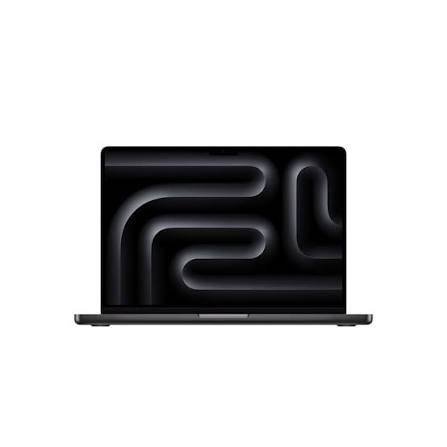
That is the short version. Below, you will learn why these models stand out, which specs matter most, and how to avoid paying for features you will never use.
| Feature | MacBook Air | MacBook Pro 14-inch | MacBook Pro 16-inch |
| Best for | Students, beginners, light vector work | Most professional designers | Heavy files, 3D, video, large canvases |
| Chip tier | Base | Base, Pro, or Max | Pro or Max |
| Recommended RAM | 16GB minimum | 32GB | 48GB or more |
| Recommended storage | 512GB | 1TB | 1TB or more |
| Display | Liquid Retina | Liquid Retina XDR, 120Hz | Liquid Retina XDR, 120Hz |
| Cooling | Fanless | Active fans | Active fans, best cooling |
| Ports | Limited | HDMI, SD card, Thunderbolt | HDMI, SD card, Thunderbolt |
| Portability | Excellent | Very good | Good |
| Price level | Lowest | Mid to high | Highest |
Apple updates its lineup often, so chip names change from year to year. The advice in this article holds across generations. Pick the right tier first, then match the specs. Always check Apple’s current lineup before you buy.
Why the 14-Inch MacBook Pro Is the Best Pick
Graphic design mixes fine detail work with big, layered files. You need a screen you can trust. You also need a machine that does not stall when you zoom into a Photoshop file with hundreds of layers. The 14-inch MacBook Pro handles both well.
A Screen Made for Color Work
The display is the main reason to choose a MacBook Pro. It uses mini-LED backlighting, which creates deep blacks, bright highlights, and strong contrast. Colors look rich and accurate right out of the box.
The screen also supports the P3 wide color gamut. This matters if you design for print, packaging, video, or modern phone screens. Many of your viewers will see P3 colors on their own devices. You want to see what they see.
ProMotion is a nice bonus. It raises the refresh rate to 120Hz, so scrolling and drawing feel smooth. Strokes made with a stylus feel more natural.
Some Pro models offer a nano-texture glass option. It cuts glare very well, which helps if you work near windows or in bright cafés. Keep in mind that it can slightly soften contrast, and it needs careful cleaning.
Power That Keeps Up With You
The Pro chips have more CPU cores, more GPU cores, and more memory bandwidth than the base chips. In plain terms, big files open faster. Filters apply faster. Exports finish sooner. You spend less time watching a spinning wheel.
The cooling system is better too. The MacBook Air has no fan, so it slows down when it gets hot. The MacBook Pro has fans, so it holds its speed during long tasks. If you export large batches or render effects, you will notice the difference.
Battery Life and Portability
The 14-inch model is small enough to carry every day. It still lasts a full workday in most design tasks. You can edit in a client meeting, at a coffee shop, or on a train without searching for an outlet.
Ports You Will Actually Use
The Pro includes an HDMI port, an SD card slot, a headphone jack, and several Thunderbolt ports. Designers who work with camera cards will love the SD slot. You can connect an external monitor, a drive, and a drawing tablet without a pile of adapters.
When the 16-Inch MacBook Pro Makes Sense
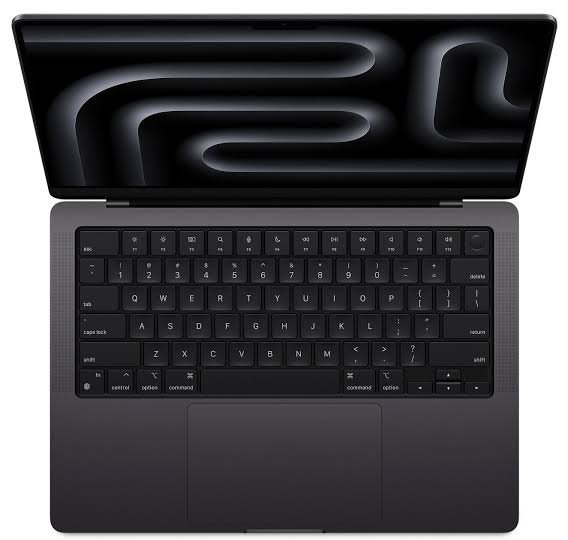
The 16-inch MacBook Pro offers the same core experience as the 14-inch model, with more of everything. You get a bigger screen, a bigger battery, and room for the top-tier Max chip with more memory.
Choose the 16-inch model if any of these describe you:
- You work on very large print files, such as posters or detailed illustrations.
- You mix graphic design with 3D modeling, motion graphics, or video editing.
- You use your laptop as your main computer and rarely plug into an external monitor.
- You like a larger canvas for UI design, layout, or digital painting.
The tradeoff is weight and price. The 16-inch model is heavier and costs noticeably more. If you carry your laptop all day, the extra size can feel like a burden. Many designers find that a 14-inch model plus an external monitor at the desk is the better setup.
When the MacBook Air Is Enough
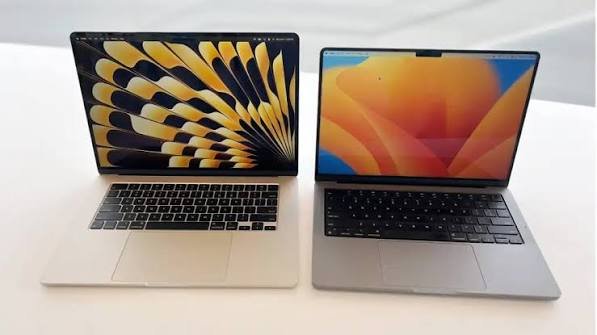
The MacBook Air is thin, light, quiet, and has excellent battery life. For many designers, it is all they need.
The Air works well if you mostly do these things:
- Logos and branding in Illustrator or Affinity Designer
- Social media graphics and web banners in Figma or Canva
- Layouts in InDesign with a moderate number of images
- Light photo retouching in Photoshop or Lightroom
It struggles a little when you push it hard for a long time. Because it has no fan, it slows down during long exports or heavy filters. Its screen is good, but it is not as bright or contrasty as the Pro’s. It also lacks the 120Hz refresh rate.
Even so, the Air offers the best value in the lineup. If you are a student, a new freelancer, or a designer who works mostly with vectors, it can serve you well for years. Just do not buy the lowest memory option. The next section explains why.
The Specs That Matter Most
Apple sells many configurations, and it is easy to overspend on the wrong upgrades. Here is where to focus your money.
RAM: Do Not Skimp
RAM is the most important spec for design work. Your apps store layers, brushes, fonts, and previews in memory. When you run out, your Mac uses the storage drive as overflow, and everything slows down.
Use this simple guide:
- 16GB: The minimum. Fine for vector work, web graphics, and light photo editing.
- 24GB to 32GB: The sweet spot. It handles big Photoshop files, several open apps, and many browser tabs.
- 48GB or more: Best for 3D, video, huge files, and heavy multitasking.
You cannot add RAM later because it is built into the chip. Buy more than you think you need today. Your files and software will grow over time.
Storage: Plan for Big Files
Design files are large. A single layered Photoshop file can reach several gigabytes. Fonts, stock images, and old projects pile up quickly.
A 512GB drive is the practical minimum. A 1TB drive is more comfortable. Apple charges a lot for storage upgrades, so you can also buy a smaller internal drive and add a fast external SSD. Keep active projects on the internal drive and move finished work to the external one.
Cloud storage helps too. Services like iCloud, Dropbox, and Adobe Creative Cloud can hold older files so they do not clog your laptop.
The Chip: Match It to Your Work
Apple’s chips come in tiers. The base chip is great for everyday tasks. The Pro tier adds more cores and more memory support. The Max tier adds even more graphics power and bandwidth.
For most graphic designers, the base or Pro tier is plenty. The Max tier is a luxury unless you do 3D rendering, high-end video, or complex motion graphics. Spend your money on RAM and storage before you spend it on a Max chip.
If you have to choose, a Pro chip with 32GB of RAM is a better buy than a base chip with 16GB. You will feel the difference every day.
The Display: Know What You Get
Every modern MacBook screen is sharp and colorful. The real gap is between the Air and the Pro.
The Pro’s XDR display is brighter, has stronger contrast, and runs at a faster refresh rate. It is also better for HDR work. If color accuracy is central to your job, the Pro is the better tool.
For professional print work, remember that no laptop screen replaces a calibrated monitor and a proper proof. A hardware calibrator is a smart investment. It keeps your colors consistent over time.
Extras That Make a Big Difference
Your laptop is only part of your setup. A few add-ons can improve your work and protect your investment.
- An external monitor: A larger, color-accurate display gives you more space and a second opinion on color. Many designers pair a MacBook with a 4K monitor.
- A drawing tablet or iPad: If you illustrate or retouch by hand, a pen device speeds up your work. An iPad can also act as a second screen.
- A fast external SSD: Use it for backups and archives.
- A precision mouse: The trackpad is excellent, but a good mouse helps during long sessions.
- AppleCare: Repairs can be costly. Extended coverage gives peace of mind for a tool that earns you money.
Which MacBook Should You Buy?
Use this guide to match the laptop to your situation.
You are a student or beginner. Get a MacBook Air with 16GB of RAM and 512GB of storage. It will handle your coursework and your first freelance jobs. Look for education discounts.
You are a freelance designer. Get a 14-inch MacBook Pro with a Pro chip, 32GB of RAM, and 1TB of storage. It is a business tool that pays for itself in saved time. The better screen also helps you deliver accurate color to clients.
You work in a studio with a desk setup. Get a 14-inch MacBook Pro and connect it to a large monitor. You get portability for meetings and power at your desk.
You do print or packaging work. Get a 14-inch or 16-inch MacBook Pro with 32GB of RAM or more. Pair it with a calibrated external display.
You mix design with video or 3D. Get a 16-inch MacBook Pro with a Max chip and 48GB of RAM or more. This is where top-end power earns its price.
You are on a tight budget. Consider a refurbished MacBook from Apple’s own store. You get a full warranty and a real discount. Avoid older Intel models, since they are much slower and will lose software support sooner.
Common Mistakes to Avoid
Many buyers make the same errors. Here is how to stay clear of them.
Buying too little RAM. This is the most common mistake. A laptop with 8GB of RAM will feel slow with modern design software. Aim for 16GB at the very least.
Overpaying for the Max chip. Unless you do heavy 3D or video, the extra graphics power will go unused. Put that money into memory and storage.
Ignoring storage. Running out of space is stressful and slows your Mac down. Keep at least 20 percent of your drive free.
Skipping calibration. A great screen still needs checking. If you work in print, calibrate regularly.
Buying an old model without checking it. A discounted older model can be a good deal. Make sure it has an Apple silicon chip and enough RAM, and check how many more years of updates it will likely get.
MacBook vs. Windows Laptops for Design
Some designers prefer Windows, and there are strong options, often at lower prices. Still, MacBooks have clear advantages for creative work. They offer excellent color accuracy, long battery life, quiet operation, and smooth integration with iPhone and iPad. They also hold their resale value well.
Most major design tools, including Adobe Creative Cloud, Figma, Sketch, and Affinity, run very well on Mac. Sketch is Mac-only. If your clients and teammates use Macs, sharing files is easier too.
Final Recommendation
For most graphic designers, the 14-inch MacBook Pro with a Pro chip, 32GB of RAM, and 1TB of storage is the best choice. It gives you a world-class screen, strong performance, good battery life, and the ports you need. It is powerful enough to last for years.
If you want more room and raw power, move up to the 16-inch model. If you want to save money and your work is light, the MacBook Air is a capable and portable alternative.
Whatever you choose, spend your budget on RAM and storage first. Those two upgrades shape your daily experience more than any other. Add a good external display, keep your files backed up, and you will have a setup that supports your creativity for a long time.
Frequently Asked Questions
What is the best MacBook for graphic design?
The 14-inch MacBook Pro with a Pro chip and 32GB of RAM is the best choice for most designers. It combines an excellent display, strong performance, and easy portability.
Is the MacBook Air good enough for graphic design?
Yes, for light to moderate work. It handles logos, social graphics, layouts, and basic photo editing well. It may slow down during long, heavy tasks because it has no fan.
How much RAM do I need for graphic design?
Get 16GB at the minimum. For large Photoshop files and heavy multitasking, 32GB is a safer choice. Choose 48GB or more for 3D or video work.
How much storage should I get?
A 512GB drive is the minimum, and 1TB is more comfortable. You can add a fast external SSD for archives and old projects.
Is the MacBook Pro worth the extra money over the Air?
It is worth it if you work with large files, need precise color, or run demanding tasks for long periods. The brighter display, active cooling, and extra ports make a real difference. If your work is light, the Air saves you money.
Do I need the Max chip for graphic design?
Most designers do not. The base or Pro chip handles typical design work with ease. The Max chip is mainly useful for 3D rendering, high-end video, and complex motion graphics.
Is a MacBook better than a Windows laptop for graphic design?
Many designers think so. MacBooks offer accurate color, long battery life, quiet performance, and strong support from design software. Windows laptops can be a good choice too, especially if you want lower prices or specific hardware.
Should I buy a refurbished MacBook for design?
It can be a smart way to save money. Apple’s refurbished store includes a warranty. Choose a model with an Apple silicon chip and enough RAM, and avoid older Intel models.
Do I need an external monitor?
It is not required, but it helps a lot. A larger, color-accurate display gives you more workspace and better color checking, especially for print and professional client work.