

As an Amazon Associate, I earn from qualifying purchases
Looking for the best Bluetooth mouse for MacBook Air? The right mouse can make yourMacBook Air much more comfortable to use, especially if you spend hours browsing, studying, working, programming, editing photos, or managing spreadsheets.
While the MacBook Air’s built-in trackpad is excellent, a mouse can provide better control for certain tasks. A good Bluetooth mouse also connects directly to your MacBook Air without requiring a USB receiver, which is particularly convenient when you want to keep your USB-C ports available for other accessories.
In 2026, there are several excellent options from Apple and Logitech. The Apple Magic Mouse is a natural choice for users who want Multi-Touch gestures and Apple’s minimalist design. Logitech offers more variety, including ergonomic mice, productivity-focused models, and compact travel mice.
After considering comfort, Bluetooth connectivity, battery life, portability, tracking, customization, and macOS compatibility, these are some of the best wireless mice for MacBook Air to consider.
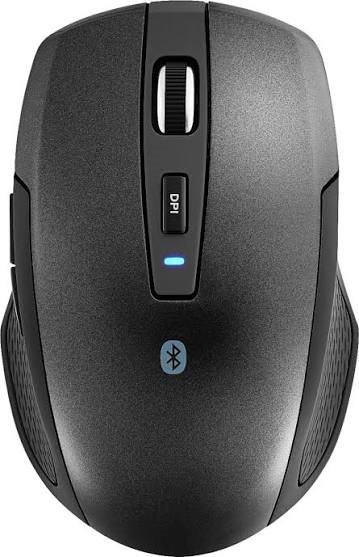
Best Bluetooth Mouse for MacBook Air: Quick Picks
| Bluetooth Mouse | Best For | Connection | Battery |
| Logitech MX Master 4 | Productivity and everyday work | Bluetooth + receiver | Up to 70 days |
| Apple Magic Mouse USB-C | Apple users and gestures | Bluetooth | About a month or more |
| Logitech MX Anywhere 3S | Travel and portability | Bluetooth + receiver | Up to 70 days |
| Logitech Lift | Ergonomic comfort | Bluetooth + receiver | Up to 2 years |
| Logitech Pebble Mouse 2 M350s | Students and casual use | Bluetooth | Up to 24 months |
What Is the Best Bluetooth Mouse for MacBook Air?
For most people who want a powerful productivity mouse, the Logitech MX Master 4 is an excellent choice. It combines an ergonomic shape with customizable controls, advanced scrolling, precise tracking, Bluetooth connectivity, and long battery life.
If you want Apple’s Multi-Touch gestures, the Apple Magic Mouse is the obvious alternative.
For frequent travelers, the Logitech MX Anywhere 3S offers a smaller design while retaining many productivity features. If comfort is your biggest concern, the Logitech Lift has a vertical ergonomic design.
For students or users who simply want a small, lightweight Bluetooth mouse, the Logitech Pebble Mouse 2 M350s is worth considering.
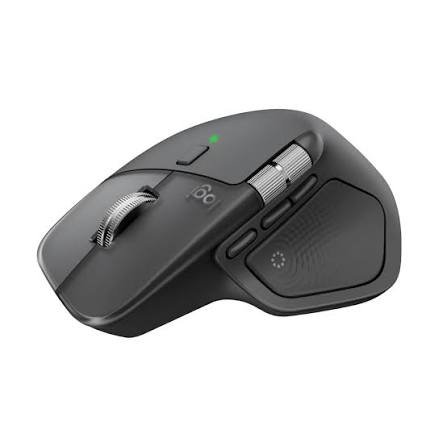
1. Logitech MX Master 4 — Best Bluetooth Mouse for MacBook Air Overall
The Logitech MX Master 4 is designed for people who use their computer for serious work.
Instead of focusing only on a slim design, Logitech built the MX Master 4 around productivity, ergonomics, scrolling, customization, and long-term desktop use.
It has an 8,000 DPI sensor, MagSpeed scrolling, customizable controls, a thumb wheel, Bluetooth connectivity, and support for multiple devices. Logitech also includes haptic feedback features designed to provide tactile responses for certain actions.
For someone working with documents, spreadsheets, browser tabs, creative applications, or programming tools, the additional controls can be extremely useful.
You can customize buttons and shortcuts to reduce the number of repetitive actions you perform with the keyboard.
The mouse is also designed for long sessions. Its larger ergonomic shape gives your palm more support than a slim travel mouse.
Logitech MX Master 4 Pros
- Ergonomic design
- 8,000 DPI sensor
- Customizable controls
- MagSpeed scrolling
- Horizontal scrolling
- Haptic feedback
- Bluetooth connectivity
- Multi-device support
- USB-C charging
- Long battery life
Logitech MX Master 4 Cons
Its larger size is not ideal if you want a mouse that disappears into a small laptop bag. It is designed more for desktop productivity than ultra-portable use.
Best for: Professionals, programmers, writers, students with demanding workloads, designers, and anyone who uses their MacBook Air for several hours every day.
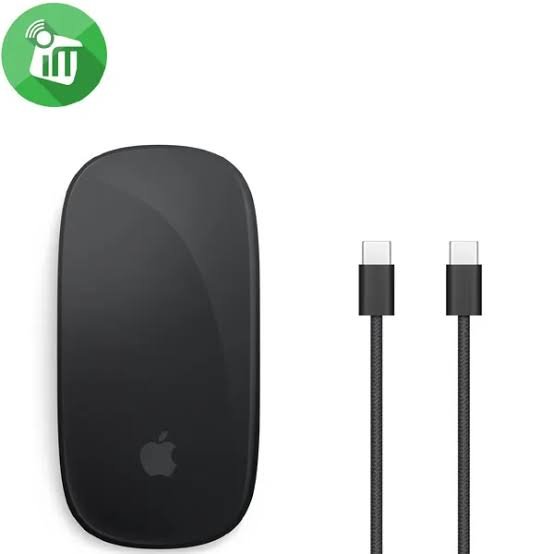
2. Apple Magic Mouse USB-C — Best Apple Mouse for MacBook Air
If you want the best Apple mouse for MacBook Air, the current USB-C Magic Mouse deserves serious consideration.
The Magic Mouse is designed specifically around Apple’s hardware and software ecosystem. Its Multi-Touch surface allows gestures such as scrolling through documents and swiping between web pages. Apple says the rechargeable battery can last about a month or more between charges.
The current model uses USB-C and connects wirelessly through Bluetooth. It also pairs automatically with a Mac.
Its low-profile design makes it particularly easy to carry with a MacBook Air. At approximately 99 grams, it is much lighter than many full-size ergonomic productivity mice.
However, the Magic Mouse’s flat design is not ideal for everyone.
Some users prefer a mouse that provides more palm support, particularly during long working sessions. The Magic Mouse also has its charging port on the underside, and Apple says the mouse cannot be used while it is charging.
Apple Magic Mouse Pros
- Excellent macOS integration
- Multi-Touch gestures
- Slim design
- Lightweight
- Bluetooth connectivity
- USB-C charging
- About a month ormore of battery life
- Automatically pairs with a Mac
Apple Magic Mouse Cons
- Flat shape may not suit everyone
- Limited physical buttons compared with productivity mice
- Cannot be used while charging
Best for: MacBook Air users who prioritize Apple design, Multi-Touch gestures, and portability.
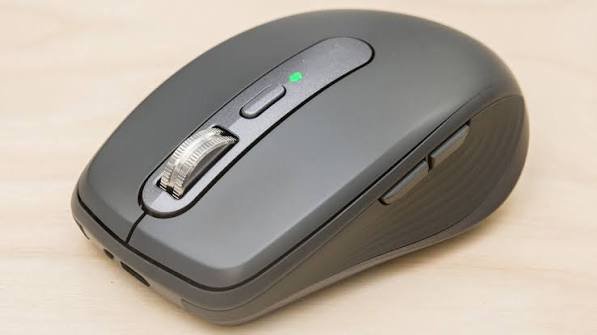
3. Logitech MX Anywhere 3S — Best Bluetooth Mouse for MacBook Air Travel
If you regularly take your MacBook Air to school, work, coffee shops, libraries, or while traveling, the Logitech MX Anywhere 3S is one of the most practical choices.
It provides many of the productivity features associated with Logitech’s larger MX mice but in a smaller body.
The MX Anywhere 3S can connect to up to three devices through Bluetooth and supports macOS. Logitech rates its battery for up to 70 days on a full charge, while a one-minute quick charge can provide up to three hours of use.
Its MagSpeed scroll wheel can switch between precise scrolling and fast scrolling, which is useful when navigating long documents or webpages. Logitech also emphasizes its quiet-click design, making it a good choice for environments such as libraries and shared offices.
Another advantage is its ability to work across different surfaces. That can be useful when you do not have a perfect desk setup.
Logitech MX Anywhere 3S Pros
- Compact and travel-friendly
- Bluetooth connectivity
- Supports up to three devices
- Up to 70 days of battery life
- USB-C charging
- Quiet clicks
- MagSpeed scrolling
- High-precision tracking
Logitech MX Anywhere 3S Cons
It does not provide as much palm support as the larger MX Master 4.
Best for: Students, travelers, remote workers, and MacBook Air users who want a balance between portability and productivity.
4. Logitech Lift — Best Ergonomic Mouse for MacBook Air
If you spend most of your day using a mouse, ergonomics should be one of your biggest considerations.
The Logitech Lift approaches the problem differently from traditional mice. Its vertical design places the hand in a more upright position, with Logitech describing the design as a natural handshake position.
The Mac version is designed for small to medium-sized hands and can connect to up to three macOS or iPadOS devices using Bluetooth Low Energy. Logitech rates battery life at up to two years using a single AA battery.
The Lift also includes a SmartWheel and customizable controls.
This makes it particularly interesting for people who spend long periods writing, programming, managing spreadsheets, or working at a desk.
Logitech Lift Pros
- Vertical ergonomic design
- Designed for small and medium hands
- Bluetooth Low Energy
- Connects to multiple devices
- SmartWheel
- Customizable controls
- Up to two years of battery life
Logitech Lift Cons
The vertical shape takes some time to get used to, particularly if you have always used a conventional mouse.
Best for: Office workers, programmers, writers, students, and anyone who prioritizes ergonomic comfort.
5. Logitech Pebble Mouse 2 M350s — Best Compact Bluetooth Mouse for MacBook Air
The Logitech Pebble Mouse 2 M350s is aimed at people who want something simple, compact, and easy to carry.
Its slim design works particularly well with the portable nature of the MacBook Air. It connects through Bluetooth Low Energy and can switch between up to three devices. Logitech lists a 400–4,000 DPI adjustable range and up to 24 months of battery life from a single AA battery.
It also supports customization through Logitech’s software on macOS.
The main compromise is comfort. A compact mouse is convenient to carry, but it does not provide the same amount of palm support as a larger ergonomic mouse.
Logitech Pebble Mouse 2 Pros
- Slim and compact
- Bluetooth connectivity
- Supports up to three devices
- Up to 24 months of battery life
- Adjustable tracking
- Quiet design
- Easy to carry
Logitech Pebble Mouse 2 Cons
It is better suited to everyday and travel use than long, demanding work sessions.
Best for: Students, travelers, casual users, and anyone who wants an affordable-feeling compact setup without needing a large productivity mouse.
How to Choose the Best Bluetooth Mouse for MacBook Air
Buying a mouse should not simply come down to choosing the most popular model. Your ideal mouse depends on how you use your MacBook Air.
1. Check macOS Compatibility
Before buying a Bluetooth mouse, make sure it supports macOS.
This is especially important if you want access to advanced features such as button customization, gesture controls, or manufacturer-specific software.
Basic cursor movement and clicking may work with many Bluetooth mice, but advanced functions can depend on software support.
2. Choose Bluetooth Instead of a USB Receiver When Possible
Bluetooth is particularly convenient for MacBook Air owners.
A Bluetooth mouse can connect directly to the laptop without using a USB receiver. This leaves your USB-C ports available for charging, external drives, displays, hubs, or other accessories.
Some Logitech mice support both Bluetooth and a USB receiver, giving you more flexibility. For example, the MX Anywhere 3S supports up to three devices over Bluetooth and is also compatible with Logitech’s Logi Bolt receiver.
3. Consider Mouse Comfort
If you only use a mouse for 20 minutes a day, comfort may not be your biggest concern.
If you use one for eight hours a day, it becomes much more important.
Consider:
- Your hand size
- Your preferred grip
- Mouse height
- Palm support
- Button placement
- Weight
- Whether you prefer a traditional or vertical design
The Logitech Lift is specifically designed around an ergonomic vertical position, while the MX Master 4 uses a larger conventional ergonomic shape.
4. Think About Battery Life
Nobody wants their wireless mouse to stop working during an important assignment or work session.
Rechargeable models are convenient because you can charge them with USB-C. The Magic Mouse can run for about a month or more between charges, while the MX Anywhere 3S is rated for up to 70 days.
Battery-powered mice can go much longer between replacements. Logitech rates the Lift for up to two years and the Pebble Mouse 2 M350s for up to 24 months under stated conditions.
5. Look at Programmable Buttons
Extra buttons can significantly improve productivity.
For example, you could assign a side button to browser back, another to browser forward, and additional controls to frequently used application shortcuts.
This matters most if you work with:
- Spreadsheets
- Photo editing
- Video editing
- Programming
- Research
- Large documents
- Multiple applications
For basic browsing, however, you may not need numerous buttons.
Bluetooth Mouse vs Magic Mouse for MacBook Air
A common question is whether you should buy a third-party Bluetooth mouse or Apple’s Magic Mouse.
The answer depends on your priorities.
The Magic Mouse emphasizes Apple’s Multi-Touch interface, slim design, and macOS integration. The MX Master 4 and other Logitech mice emphasize ergonomics, physical controls, customization, and productivity.
If gestures are important to you, the Magic Mouse has an obvious advantage.
If physical comfort and customizable controls matter more, a Logitech productivity mouse may be more suitable.
There is no requirement to use an Apple mouse with an Apple laptop.
Bluetooth Mouse vs Wireless USB Mouse for MacBook Air
Bluetooth and USB receiver mice both provide wireless connections, but they work differently.
A Bluetooth mouse connects directly to the MacBook Air. A USB receiver mouse requires a receiver to be plugged into a compatible port or hub.
For MacBook Air users, Bluetooth has a practical advantage because it keeps your USB-C ports free.
A USB receiver can still be useful if you want a particular connection method or if you regularly switch between computers.
Some Logitech mice offer both options, allowing you to choose depending on your setup.
Best Bluetooth Mouse for MacBook Air for Different Users
Best Mouse for MacBook Air Students
The Logitech MX Anywhere 3S is a strong choice if you move between classes, home, and the library. Its compact design and long battery life make it convenient for students who carry their MacBook Air everywhere.
The Pebble Mouse 2 M350s is another option if portability and simplicity are more important than advanced productivity features.
Best Mouse for MacBook Air Office Work
The Logitech MX Master 4 is better suited to demanding office work because it provides an ergonomic shape, customizable controls, advanced scrolling, and precise tracking.
It is especially useful if your work involves spreadsheets, documents, research, and multitasking.
Best Mouse for MacBook Air Travel
The MX Anywhere 3S is designed around mobility and is considerably more travel-friendly than a large desktop mouse.
The Magic Mouse is another excellent portable option because of its slim, lightweight design.
Best Ergonomic Mouse for MacBook Air
The Logitech Lift is the obvious choice if you specifically want a vertical ergonomic mouse. Its design is intended for small to medium-sized hands and provides a more upright hand position.
Best Apple Mouse for MacBook Air
The Apple Magic Mouse remains the natural choice if your priority is Apple’s Multi-Touch surface and minimalist design.
How to Connect a Bluetooth Mouse to MacBook Air
Connecting a Bluetooth mouse to your MacBook Air is generally simple.
- Turn on the Bluetooth mouse.
- Put the mouse into pairing mode.
- Open System Settings on your MacBook Air.
- Select Bluetooth.
- Find the mouse in the list of available devices.
- Select it and complete the pairing process.
Apple’s Magic Mouse can automatically pair with a Mac when connected for setup, after which you can disconnect the cable and use it wirelessly.
After pairing, you can adjust available mouse and pointer settings in macOS.
Frequently Asked Questions About Bluetooth Mice for MacBook Air
What is the best Bluetooth mouse for MacBook Air?
The Logitech MX Master 4 is a strong choice for productivity, while the Apple Magic Mouse is particularly suited to users who want Multi-Touch gestures. The MX Anywhere 3S is a good option for travel, and the Logitech Lift focuses on ergonomic comfort.
Is a Bluetooth mouse good for MacBook Air?
Yes. Bluetooth mice are particularly convenient with the MacBook Air because they connect wirelessly without requiring a USB receiver.
Does MacBook Air support Bluetooth mice?
Yes. MacBook Air models with Bluetooth can connect to compatible Bluetooth mice through macOS.
Is Apple Magic Mouse good for MacBook Air?
Yes. The Magic Mouse is designed for Mac and provides Multi-Touch gestures, Bluetooth connectivity, and a rechargeable battery. The current USB-C version can run for about a month or more between charges.
Can I use a Logitech mouse with MacBook Air?
Yes. Logitech offers multiple mice designed to work with macOS, including the MX Master series, MX Anywhere series, Lift, and Pebble Mouse 2.
What is the best wireless mouse for MacBook Air?
The best wireless mouse depends on your needs. The MX Master 4 is designed for productivity, the MX Anywhere 3S for portability, the Lift for ergonomic comfort, and the Magic Mouse for Apple’s Multi-Touch experience.
What is the best Bluetooth mouse for MacBook Air for students?
The Logitech MX Anywhere 3S is a strong option for students who want portability and productivity features. The Pebble Mouse 2 M350s is better suited to students who want something smaller and simpler.
What is the best ergonomic mouse for MacBook Air?
The Logitech Lift is a strong ergonomic option because of its vertical design and 57-degree hand position. Logitech specifically positions the Mac version for small to medium-sized hands.
Does a Bluetooth mouse need a dongle?
No. Bluetooth mice can connect directly to your MacBook Air without a USB dongle. Some models also support an optional USB receiver for additional connection flexibility.
Can I connect a Bluetooth mouse and AirPods to my MacBook Air at the same time?
Yes. Your MacBook Air can connect to multiple Bluetooth accessories, allowing you to use a Bluetooth mouse while also using Bluetooth headphones such as AirPods.
Can I use a Bluetooth mouse with an M-series MacBook Air?
Yes. Bluetooth mice that support the relevant macOS version can be used with Apple silicon MacBook Air models.
Does the Magic Mouse charge with USB-C?
The current USB-C Magic Mouse uses USB-C for charging. Apple lists Bluetooth and USB-C connectivity for the current model.
Can you use the Magic Mouse while charging?
No. Apple states that the Magic Mouse is unavailable for use while charging.
Final Verdict: Which Bluetooth Mouse Should You Buy for MacBook Air?
The best Bluetooth mouse for MacBook Air depends on the type of user you are.
If you want a powerful mouse for everyday productivity, the Logitech MX Master 4 is a feature-rich option with ergonomic design, customizable controls, advanced scrolling, and long battery life.
If you want themost Apple-like experience, the Apple Magic Mouse gives you Multi-Touch gestures, a slim design, Bluetooth connectivity, and USB-C charging.
If you carry your MacBook Air everywhere, the Logitech MX Anywhere 3S offers an attractive combination of portability, productivity, and battery life. Logitech rates it for up to 70 days per charge.
If hand comfort is your priority, consider the Logitech Lift. Its vertical ergonomic design and support for small to medium-sized hands make it a different proposition from traditional flat mice.
And if you want a simple, compact mouse that takes up very little space in your laptop bag, the Logitech Pebble Mouse 2 M350s is worth considering.
The most important thing is to choose based on how you use your MacBook Air, not simply which mouse has the most features. A student who carries a laptop around all day has different needs from a programmer or office worker who sits at a desk for eight hours.
For most MacBook Air owners, Bluetooth is the most convenient connection method because it keeps the laptop’s USB-C ports free. From there, focus on comfort, battery life, size, tracking accuracy, scrolling, and customization.
That approach will help you find the best Bluetooth mouse for your MacBook Air without paying for features you will never use.