

As an Amazon Associate, I earn from qualifying purchases
1. Best Cleaning Kits for MacBook Screens and Keyboards at a Glance
| Product | Best For | Main Advantage | Limitation |
| WHOOSH! Screen Cleaner Kit | Screen cleaning | Includes cleaning solution and microfiber cloths | Apple recommends water for routine MacBook screen cleaning |
| MagicFiber Microfiber Cleaning Cloths | Everyday cleaning | Simple, reusable, and easy to carry | Does not remove debris between keys |
| Apple Polishing Cloth | Users who prefer an Apple-branded cloth | Designed for delicate surfaces | More expensive than basic microfiber cloths |
| OXO Good Grips Sweep & Swipe | Removing dust and loose debris | Combines a brush and cleaning pad | Not a complete cleaning kit |
| A soft, electronics-safe detailing brush | Keyboard dust removal | Reaches around keys and tight spaces | Does not remove every type of oily residue |
These products serve different purposes. You do not need to purchase all of them. For most MacBook owners, a soft microfiber cloth, a gentle keyboard brush, and a careful cleaning routine are enough.
2. WHOOSH! Screen Cleaner Kit — Best Overall Screen Cleaning Kit

The WHOOSH! Screen Cleaner Kit is a convenient option for people who want a dedicated screen-cleaning product rather than relying only on a dry cloth. The kit has been featured in technology coverage as a display-cleaning option and commonly includes cleaning solution and microfiber cloths. Exact contents depend on the package you buy.
Why consider WHOOSH!?
Convenient for regular maintenance: A screen-cleaning kit gives you the main tools in one package. You can keep it at your desk and use it to maintain compatible screens and other electronics according to the product instructions.
Useful for fingerprints: A suitable screen cleaner can help remove oily fingerprints that do not disappear with a dry cloth alone.
Reusable cloths: The included microfiber cloths can be reused when they are kept clean and washed according to their care instructions.
Good for a multi-device setup: If you also own a tablet, phone, or external monitor, a compatible screen-cleaning solution may be useful for those devices too.
What should MacBook owners know?
Apple’s standard guidance for cleaning a MacBook screen is to shut down the laptop, unplug it, and use a soft, lint-free cloth dampened with water only. Apple also describes a method for stubborn smudges using a cloth moistened with a 70% isopropyl alcohol solution. Do not spray liquid directly onto the screen.
That means you should not assume that every screen-cleaning spray is automatically appropriate for every MacBook display. Check the product instructions and Apple’s guidance for your specific model before using a solution.
Best for: People who want a convenient screen-cleaning kit and are prepared to follow the device manufacturer’s cleaning guidance.
3. MagicFiber Microfiber Cleaning Cloths — Best Budget Option
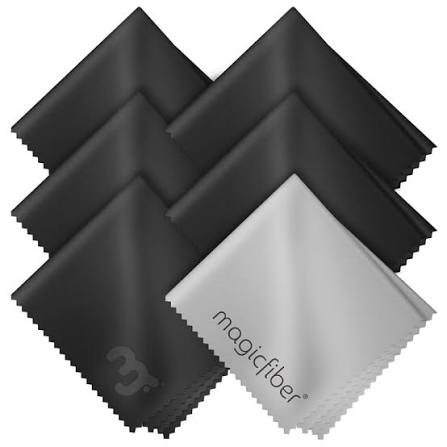
A good microfiber cloth is one of the most useful accessories you can own for a MacBook. It can remove everyday dust and light fingerprints without requiring a spray or a complicated kit.
MagicFiber microfiber cloths are a practical option for people who want several cloths for regular use. Keep one for your laptop screen, another for the keyboard and exterior, and a third as a spare.
Why microfiber matters
Soft material: A clean, soft, lint-free cloth is less likely to scratch a screen than rough paper products or abrasive fabric.
Easy to carry: A small cloth fits in a laptop sleeve, backpack, or desk organizer.
Reusable: You can wash suitable microfiber cloths according to their care instructions rather than constantly replacing disposable wipes.
No liquid required for routine dust: A dry cloth is often sufficient to remove loose dust and light marks.
What are the limitations?
A microfiber cloth cannot remove every type of grime on its own. Oily fingerprints may require a slightly damp cloth, and debris between keyboard keys may need a soft brush.
It is also important to keep the cloth clean. If it collects grit, crumbs, or other debris, rubbing it across a display can cause unwanted scratches.
Best for: Students, office workers, and anyone who wants an inexpensive, reusable MacBook cleaning accessory.
4. Apple Polishing Cloth — Best for Users Who Prefer an Apple-Branded Cloth
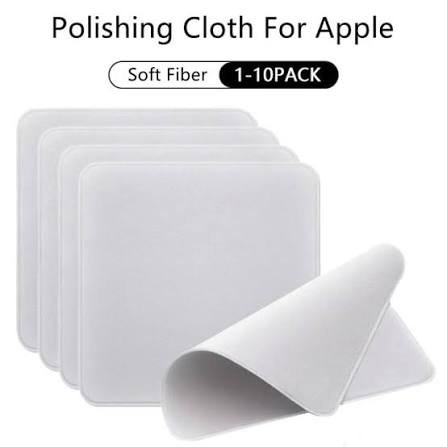
The Apple Polishing Cloth is an option for Mac owners who prefer an Apple-branded cleaning accessory. It can be useful for gentle surface cleaning, but you do not need to buy an Apple-branded cloth to clean a standard MacBook screen.
Apple’s general MacBook cleaning instructions recommend a soft, lint-free cloth. A suitable clean microfiber cloth can meet that basic requirement.
When is it worth considering?
- You want a dedicated cloth for your Apple devices.
- You prefer to keep a separate cloth for the screen.
- You want a compact accessory that is easy to store.
- You are willing to pay more for a branded accessory.
Is it necessary?
No. For most MacBook owners, a clean, soft, lint-free microfiber cloth is a sensible and economical choice. Spend extra on a branded cloth only if you value its particular design or material.
Best for: Users who prefer Apple-branded accessories and want a dedicated screen-cleaning cloth.
5. OXO Good Grips Sweep & Swipe — Best for Dust and Loose Debris
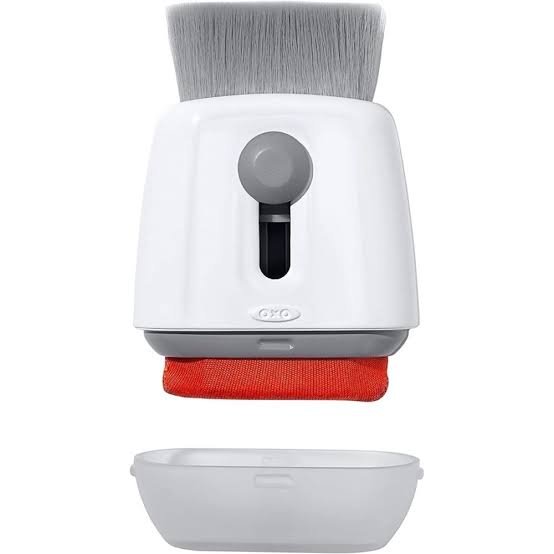
The OXO Good Grips Sweep & Swipe is a useful type of cleaning accessory for people who want to remove loose dust from electronics and other small surfaces. Its brush-and-cleaning-pad design makes it more versatile than a cloth alone.
For MacBook owners, a brush is especially helpful around keyboard keys, where dust and small particles can collect.
Why a brush is useful
Reaches small spaces: A soft brush can help lift loose debris from the gaps around keys and along the edges of the keyboard.
Reduces rubbing: Brushing away loose particles before wiping helps prevent you from dragging grit across the laptop’s surfaces.
Useful for routine maintenance: You can use a gentle brush to remove visible dust before wiping the keyboard and palm rest with a suitable cloth.
What should you avoid?
Do not press hard, force the bristles beneath keys, or use a brush that sheds stiff bristles. Avoid tools that might damage key mechanisms or push debris further into the laptop.
A brush is designed for loose debris, not liquid spills, sticky keys, or internal repairs. If a key is stuck or the keyboard is malfunctioning, cleaning the exterior may not resolve the underlying issue.
Best for: People who regularly notice dust and crumbs around their MacBook keyboard.
6. Soft Electronics Detailing Brush — Best for Cleaning Between Keys
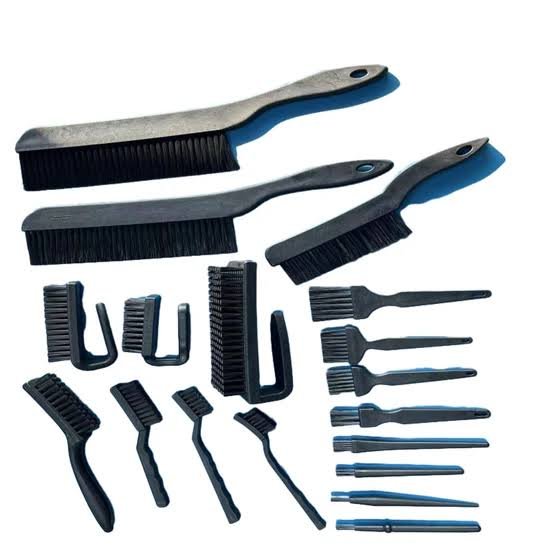
A small, soft detailing brush is a simple accessory that can make keyboard maintenance easier. Look for a brush with gentle bristles and a handle that lets you control the movement without applying excessive pressure.
You do not necessarily need a specialist MacBook keyboard kit. A suitable electronics-cleaning brush can be enough for light dust removal.
How to choose a good brush
- Soft bristles: Choose a brush that will not scratch the laptop’s surfaces.
- Secure bristles: Avoid brushes that shed hair or fibers.
- Comfortable handle: A handle that is easy to control helps prevent accidental pressure.
- Easy storage: A small brush can be kept with your laptop accessories.
- No harsh chemicals: Use it dry for ordinary dust removal unless the product’s instructions specify otherwise.
How to use it safely
Shut down your MacBook and unplug its charger. Hold the laptop securely and gently sweep visible debris away from the keys. Avoid pushing dust into the keyboard or applying pressure that could damage the key mechanisms.
For ordinary cleaning, you should not need to remove the keycaps. Removing MacBook keycaps without the correct model-specific procedure can damage the delicate mechanisms beneath them.
Best for: Users who want a basic, low-cost tool for routine keyboard maintenance.
What Should the Best MacBook Cleaning Kit Include?
You do not need a large collection of tools to maintain a clean MacBook. A good kit should contain a few useful items that serve different purposes.
A soft, lint-free microfiber cloth
This is the most important item for routine screen cleaning. Choose a clean cloth that does not shed fibers and has no rough edges or embedded dirt.
Keep the cloth in a clean pouch or storage bag so it does not collect dust inside your backpack.
A soft keyboard brush
A brush helps remove loose dust and particles around the keys. Choose one intended for delicate electronics rather than a stiff household cleaning brush.
A suitable cleaning solution, if needed
A screen-cleaning solution may be useful for compatible devices, but it is not essential for routine MacBook screen cleaning. Apple recommends water on a soft, lint-free cloth for normal MacBook display cleaning. Its guidance also covers a 70% isopropyl alcohol solution on a cloth for stubborn smudges. Always follow the instructions for your exact model.
A separate cloth for the keyboard and exterior
Using separate cloths helps prevent keyboard oils and dirt from transferring to the screen. This is particularly helpful if you clean your MacBook regularly.
Optional cleaning accessories
You might also consider a small storage pouch and a clean, dry cloth for travel. These accessories are convenient, but they are not essential.
My recommendation: Start with a quality microfiber cloth and a soft brush. Add a screen-cleaning solution only if you have a specific need and have confirmed it is suitable for your display.
8. How to Clean a MacBook Screen Safely
A proper cleaning technique matters as much as the products you buy. Even a good cleaning kit can cause problems if too much liquid is used or the wrong material is rubbed against the display.
Follow these steps for routine cleaning.
Step 1: Shut down your MacBook
Save your work, shut down the computer, and unplug the power adapter and connected accessories. Allow the device to cool if it has been running hot.
Step 2: Remove loose dust
Use a clean, dry microfiber cloth to remove loose dust. Avoid pressing hard against the display.
Step 3: Dampen the cloth if necessary
For ordinary cleaning, Apple recommends a soft, lint-free cloth dampened with water only. The cloth should be slightly damp, not dripping wet.
Never spray water or cleaning solution directly onto the screen. Liquid can run into openings and damage internal components.
Step 4: Wipe gently
Use light pressure and gentle movements. Avoid aggressive scrubbing, especially if the display has stubborn marks.
Step 5: Dry the screen
Use a clean, dry portion of the cloth to remove remaining moisture. Wait until the display is completely dry before closing the laptop or turning it back on.
Important note about nano-texture displays
If your MacBook or Apple display has nano-texture glass, follow Apple’s specific instructions for that display. Do not assume that cleaning methods suitable for standard glass are appropriate for every screen surface.
9. How to Clean a MacBook Keyboard Safely
Your MacBook keyboard collects fingerprints, skin oils, dust, and small particles from everyday use. Cleaning it regularly can help keep the keys and surrounding surfaces looking tidy.
Step 1: Shut down the laptop
Turn off your MacBook and disconnect the charger. This reduces the chance of accidentally activating keys while cleaning.
Step 2: Remove loose debris
Use a soft, dry brush to gently sweep away dust and particles around the keys. Do not force the bristles beneath the keys.
Step 3: Wipe the key surfaces
Use a clean, soft, lint-free cloth that is only slightly damp if needed. Wipe gently and avoid letting liquid collect around the edges of the keys.
Apple permits certain disinfectant wipes on hard, nonporous surfaces under its general guidance, but moisture must not enter openings, and products containing bleach or hydrogen peroxide should be avoided. Follow the specific instructions for your MacBook.
Step 4: Clean the palm rest and trackpad
Use a separate clean cloth to wipe the palm rest and trackpad. This helps avoid transferring dirt from the keyboard to other surfaces.
Step 5: Let everything dry
Make sure the keyboard, trackpad, and exterior are completely dry before reconnecting power or turning on the MacBook.
Important: Do not pour liquid onto the keyboard, remove keys for routine cleaning, or use sharp tools to scrape away dirt.
10. Cleaning Products You Should Avoid
Some household products are too harsh or difficult to control for use on a MacBook. Avoid the following unless Apple specifically recommends a method for your exact device.
Household glass cleaners
Window cleaners may contain ingredients that are unsuitable for a MacBook display. Use Apple’s recommended method instead.
Abrasive cloths and paper towels
Rough materials can scratch delicate surfaces or leave fibers behind. Choose a soft, lint-free cloth.
Bleach and hydrogen peroxide cleaners
Apple advises against products containing bleach or hydrogen peroxide for the relevant hard surfaces covered by its cleaning guidance.
Aerosol sprays
Do not spray cleaning products directly onto the laptop. Aerosols and uncontrolled liquid can enter openings.
Excessive liquid
A wet cloth is not safer or more effective than a slightly damp one. Too much moisture around the keyboard, ports, or display edges can damage the computer.
Sharp objects and aggressive brushes
Do not use knives, needles, metal picks, or stiff brushes to clean around keys. These can damage the keyboard or scratch the exterior.
11. How Often Should You Clean Your MacBook?
The ideal cleaning schedule depends on how often you use your laptop and where you use it.
| Cleaning Task | Suggested Frequency |
| Remove visible screen fingerprints | When needed |
| Wipe the keyboard and trackpad | Several times a week or as needed |
| Brush loose dust from keys | Weekly or when debris appears |
| Clean the exterior | Weekly or as needed |
| Wash microfiber cloths | When dirty, following the cloth’s care instructions |
| Inspect ports and openings | Occasionally, without inserting tools |
These are practical habits rather than official Apple requirements. If you use your MacBook in a dusty environment, eat near it, or travel frequently, you may need to clean it more often.
How to keep your MacBook cleaner for longer
- Wash and dry your hands before long work sessions.
- Avoid eating directly over the keyboard.
- Keep your laptop in a clean sleeve or bag when travelling.
- Store cleaning cloths separately from loose items and grit.
- Avoid pressing the screen with your fingers.
- Wipe visible fingerprints before they build up.
Regular light cleaning is generally easier and safer than waiting until the laptop has accumulated a thick layer of grime.
Frequently Asked Questions
1. What is the best cleaning kit for a MacBook screen and keyboard?
A practical kit includes a soft microfiber cloth, a gentle keyboard brush, and an appropriate cleaning method for the screen. WHOOSH! is one screen-cleaning kit to consider, while MagicFiber cloths and a soft detailing brush can provide a simple alternative.
2. Can I use WHOOSH! on my MacBook screen?
Check the product instructions and Apple’s guidance for your specific display before using any cleaning solution. Apple recommends water on a soft, lint-free cloth for routine MacBook screen cleaning. Never spray a cleaner directly onto the display.
3. Is a microfiber cloth enough to clean a MacBook?
For routine dust and light fingerprints, a clean microfiber cloth is often sufficient. A soft brush is useful for loose debris around keys, while a suitable cleaning method may be needed for stubborn marks.
4. Can I use alcohol to clean my MacBook screen?
Apple describes using a cloth moistened with a 70% isopropyl alcohol solution for stubborn smudges on Mac laptop displays. This is not the same as freely applying alcohol or spraying it onto the screen. Follow Apple’s instructions for your exact model, and check special requirements for nano-texture displays.
5. Can I use disinfectant wipes on my MacBook keyboard?
Apple permits certain disinfectant wipes on hard, nonporous surfaces under its cleaning guidance. Avoid bleach and hydrogen peroxide products, prevent moisture from entering openings, and follow the model-specific instructions. Never saturate the keyboard.
6. Is compressed air safe for a MacBook keyboard?
Do not assume compressed air is suitable for every MacBook keyboard or every cleaning situation. Follow Apple’s model-specific guidance if you are dealing with a keyboard problem that requires a particular cleaning procedure. For routine dust, a soft brush is a simple option.
7. How do I remove fingerprints from my MacBook screen?
Shut down the laptop, unplug it, and gently wipe the screen with a soft, lint-free cloth dampened with water. Dry it with a clean portion of the cloth. For stubborn marks, follow Apple’s additional cleaning guidance for your display.
8. Can I use paper towels to clean my MacBook?
It is better to use a soft, lint-free cloth. Apple advises against abrasive cloths, towels, and paper towels because they may damage delicate surfaces or leave unwanted material behind.
9. Do I need an expensive MacBook cleaning kit?
No. Most users can maintain their MacBook with a clean microfiber cloth and a soft keyboard brush. A more expensive kit is mainly a matter of convenience, included accessories, and personal preference.
10. What should I do if liquid spills into my MacBook keyboard?
Shut down the laptop if you can do so safely, disconnect the power source, and do not continue using or charging it. Do not try to solve an internal liquid spill with a cleaning kit. Contact Apple or an authorized service provider for advice as soon as possible.
Final Verdict: Which MacBook Cleaning Kit Should You Buy?
The best cleaning kit for most MacBook owners is a quality microfiber cloth combined with a soft keyboard brush. This combination handles everyday dust and fingerprints without requiring a large collection of products.
Choose the WHOOSH! Screen Cleaner Kit if you prefer a dedicated screen-cleaning product and have confirmed it is suitable for your display. Choose MagicFiber microfiber cloths if you want a simple, reusable, budget-friendly option. Add a soft detailing brush if dust regularly collects around your keyboard keys.
Most importantly, use the right technique. Shut down and unplug your MacBook, avoid spraying liquid directly onto it, use gentle pressure, and keep moisture away from ports and openings. Follow Apple’s model-specific instructions, especially if your device has a nano-texture display.
You do not need the most expensive cleaning kit to maintain a clean MacBook. A few suitable tools, stored properly and used carefully, are usually enough.
Affiliate Disclosure
This article may contain affiliate links. If you purchase through qualifying links, this website may earn a commission at no additional cost to you. Product suggestions are provided to help readers compare suitable cleaning accessories. Always check current product details and your MacBook’s cleaning instructions before use.
Suggested Internal Links
[…] Best Cleaning Kit for MacBook Screen and Keyboard — for general MacBook maintenance. […]