

As an Amazon Associate, I earn from qualifying purchases
Best USB-C to HDMI Adapters for MacBook Air at a Glance
| Adapter | Best for | Main advantage |
| Anker 310 USB-C to HDMI Adapter | Best overall for basic use | Compact design and 4K at 60Hz |
| Cable Matters USB-C to HDMI 2.1 Adapter | High-refresh displays | Advanced HDMI support on compatible Macs |
| Apple USB-C Digital AV Multiport Adapter | Apple-branded option | HDMI plus USB and charging |
| UGREEN USB-C to HDMI Adapter | Budget alternative | Simple connection for an external display |
| Anker 555 8-in-1 USB-C Hub | Desk setup | HDMI, charging, and extra ports |
These recommendations serve different needs. Check the exact product version and compatibility information before ordering, especially if you own a newer MacBook Air or a high-refresh-rate monitor.
- Anker 310 USB-C to HDMI Adapter — Best Overall
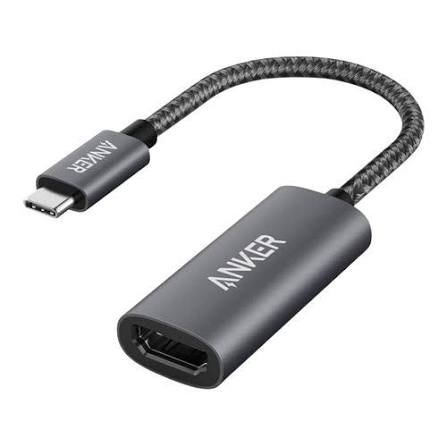
The Anker 310 USB-C to HDMI Adapter is a strong option if you want a simple way to connect your MacBook Air to an HDMI display.
It supports HDMI 2.0 and advertises resolutions up to 4K at 60Hz. Its compact design also makes it convenient to carry in a laptop bag.
You do not need a large docking station just to connect one monitor.
Plug the adapter into a compatible USB-C or Thunderbolt port on your MacBook Air, then connect an HDMI cable to your monitor or TV.
Why consider it?
- Supports up to 4K at 60Hz
- Compact and easy to carry
- Simple single-display connection
- Suitable for office work and presentations
- No large dock required
A 4K display at 60Hz is a good target for most everyday users. Text looks sharp, and scrolling feels smoother than it does at 30Hz.
What should you check?
Anker has sold different adapter versions over time. Confirm that the exact product supports your MacBook Air model and the resolution you need.
Also remember that this adapter connects one HDMI display. It does not add charging or extra USB ports.
Best for: People who want a compact adapter for one external monitor or television.
- Cable Matters USB-C to HDMI 2.1 Adapter — Best for High-Refresh Displays
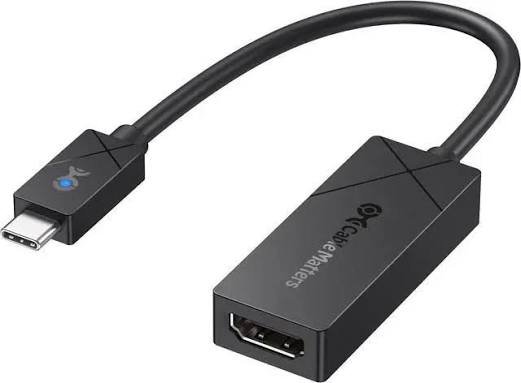
If you own a high-refresh-rate monitor, a standard 4K 60Hz adapter may not provide everything you want.
The Cable Matters USB-C to HDMI 2.1 adapter designed for macOS is worth considering for compatible setups. The manufacturer lists support for higher refresh rates on certain Mac models, including up to 4K at 120Hz on several M-series configurations. Actual performance depends on the Mac, adapter version, and display.
This type of adapter may be useful for video editing, smooth desktop navigation, and compatible high-refresh monitors.
Main advantages
- HDMI 2.1 support
- Higher refresh-rate options on supported Macs
- Suitable for compatible advanced displays
- Useful for users who want more than 4K at 60Hz
What are the limitations?
Do not assume every MacBook Air can output every resolution and refresh rate listed by the adapter manufacturer.
The Mac’s display capabilities, the adapter, the HDMI cable, and the monitor must all support the desired mode.
For most office users, 4K at 60Hz is enough. Pay extra for a high-refresh adapter only if your display and workflow can take advantage of it.
Best for: Owners of compatible MacBook Air models and high-refresh displays who need more advanced video output.
- Apple USB-C Digital AV Multiport Adapter — Best Apple-Branded Option
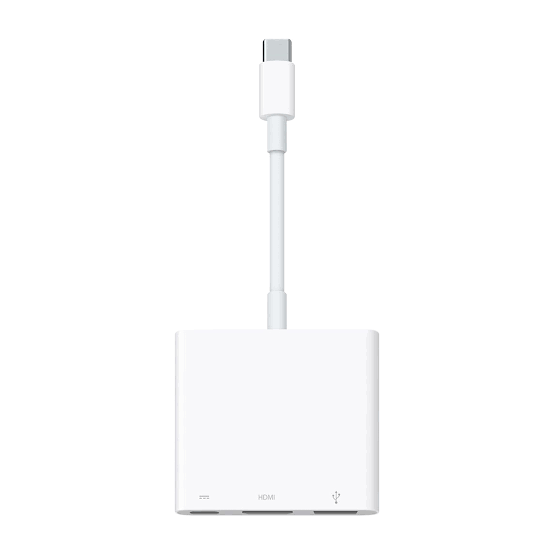
If you prefer buying accessories from Apple, consider the Apple USB-C Digital AV Multiport Adapter.
It combines HDMI output with additional connectivity. This can be convenient if you want to connect an external display while keeping access to other accessories and charging.
Apple provides guidance for connecting Macs to HDMI displays through USB-C and Thunderbolt adapters. The adapter’s own technical specifications should be checked for supported resolutions and refresh rates.
Why choose it?
- Apple-branded accessory
- HDMI connection for compatible displays
- Additional connectivity in one adapter
- Useful for presentations and office setups
Is it worth the price?
That depends on your needs and the price difference.
Third-party adapters can offer similar basic functionality for less money. If you only need one HDMI output, a small adapter may be enough.
However, you may prefer Apple’s option if you want an accessory from the same manufacturer as your MacBook Air.
Best for: Users who prefer Apple-branded accessories and want HDMI plus additional connectivity.
- UGREEN USB-C to HDMI Adapter — Best Budget Alternative
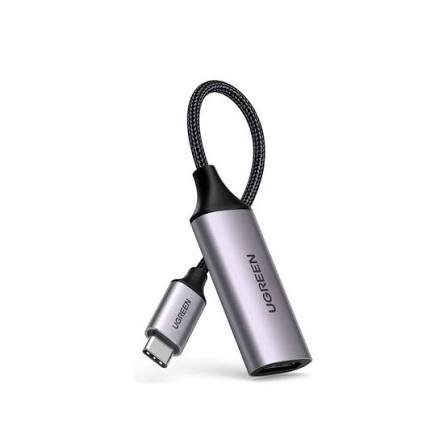
UGREEN offers USB-C display adapters for people who want a straightforward connection without paying for a large hub.
A simple adapter can be all you need for a home monitor, classroom projector, or television.
Before buying, check the specifications of the exact UGREEN model. Resolution support, refresh rate, cable length, and physical design can vary between products.
Benefits to look for
- Compact construction
- HDMI output
- Compatibility with USB-C video output
- Support for your target resolution
- A practical price
If your monitor supports 4K, look for an adapter that explicitly lists 4K at 60Hz if that is what you need.
A listing that only says “4K compatible” may not make the refresh rate clear.
Best for: Budget-conscious buyers who want a simple HDMI connection.
- Anker 555 8-in-1 USB-C Hub — Best for a Complete Desk Setup
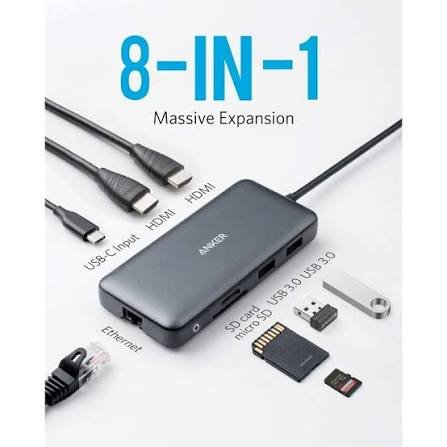
Sometimes, an HDMI adapter alone is not enough.
You may also want to charge your MacBook Air, connect a mouse, transfer files, or plug in an Ethernet cable. A multiport hub combines several connections in one accessory.
The Anker 555 8-in-1 USB-C Hub is one option to compare. Its listed connections include HDMI, USB ports, Ethernet, memory card readers, and USB-C power delivery. HDMI output is specified up to 4K at 60Hz.
Why choose a hub?
- HDMI output for an external monitor
- Additional USB connections
- Charging pass-through
- Memory card readers
- Ethernet on supported configurations
This is useful if your MacBook Air is the center of your desk setup.
You can connect a monitor, keyboard, mouse, and other devices without using a separate adapter for each one.
What should you consider?
A hub is larger than a single HDMI adapter. You may also need to connect your charger to the hub’s power-delivery port.
Check the maximum power pass-through and the specifications of each port. Power delivery through a hub does not mean the hub itself supplies all the power your MacBook needs.
Best for: People who want HDMI, charging, and extra connections through one accessory.
How to Choose the Best USB-C to HDMI Adapter for MacBook Air
The best adapter depends on your MacBook model, display, and intended use. These are the main features to check.
1. Confirm MacBook Air Compatibility
Most recent MacBook Air models use USB-C or Thunderbolt ports for external display connections.
Apple explains that Macs with Thunderbolt 3, Thunderbolt 4, Thunderbolt 5, or compatible USB-C ports can connect to HDMI devices through an appropriate adapter.
Still, check the adapter’s compatibility list before buying.
Do not rely only on the connector’s shape. The port and adapter must support video output.
2. Look for 4K at 60Hz
For most users, 4K at 60Hz is a sensible choice.
The resolution provides plenty of detail for documents, spreadsheets, photos, and video. The 60Hz refresh rate also makes everyday movement feel smoother than 30Hz.
Be careful when reading product descriptions.
Some adapters support 4K but only at 30Hz. That can work for basic presentations, but scrolling and moving windows may feel less fluid.
If you are buying an adapter for a 4K monitor, check both the resolution and refresh rate.
3. Check HDMI Version and Cable Quality
HDMI 2.0 is generally sufficient for many 4K 60Hz setups.
HDMI 2.1 may be useful if you need higher bandwidth for advanced display modes, but the version number alone does not guarantee a particular refresh rate.
The adapter, HDMI cable, MacBook Air, and monitor must all support the mode you want.
If you plan to connect a 4K 120Hz monitor, verify the entire connection rather than relying on the adapter’s headline specification.
4. Decide Whether You Need Charging Pass-Through
A basic adapter usually handles video only.
That means you may need to use one USB-C port for the adapter and another for your charger.
If you want a cleaner desk, consider a multiport hub with USB-C power delivery.
This lets you connect the monitor and charger through one hub, provided the hub supports your display requirements and power needs.
Check the maximum charging pass-through before buying.
5. Consider Size and Portability
If you travel frequently, a small adapter is easier to carry.
It fits into a laptop bag and takes up little space. This makes it useful for presentations, classrooms, and working from different locations.
For a permanent desk setup, a hub may be more convenient.
It can keep your monitor, keyboard, mouse, and other accessories connected in one place.
6. Check Support for Multiple Displays
A USB-C to HDMI adapter normally connects one HDMI display. Buying two adapters does not automatically mean your MacBook Air can run two external monitors.
External display support depends on the MacBook Air’s chip, model, resolution, and refresh rate.
Apple’s current guidance says MacBook Air models with M4 and M5 support up to two external displays simultaneously, subject to the supported display configurations. Older models may have different limits.
If you want a dual-monitor setup, check your exact MacBook Air model first.
Also be cautious with hubs that advertise multiple HDMI ports. They may rely on specific technology or have display limitations that differ from a basic adapter.
How to Connect a MacBook Air to a Monitor or TV
Connecting your MacBook Air is usually straightforward.
- Confirm that the adapter supports your MacBook Air and display.
- Connect the USB-C end to a compatible port on your MacBook Air.
- Connect an HDMI cable between the adapter and your monitor or TV.
- Select the correct HDMI input on the display.
- Open System Settings on your Mac and select Displays.
- Adjust resolution, scaling, arrangement, and refresh rate if those options are available.
Your Mac should detect a compatible display automatically.
If the screen stays blank, check that the display is powered on and set to the correct input. Try another HDMI cable or port if possible.
MacBook Air USB-C to HDMI Adapter Not Working? Try These Fixes
If your adapter does not work, you do not necessarily need to replace it immediately.
Try these steps.
Check the Connections
Disconnect the adapter and HDMI cable, then reconnect them firmly.
Make sure the cable is inserted fully and that the monitor is using the correct input.
Restart the Display Connection
Disconnect the display, reconnect it, and open System Settings to check the Displays options.
If necessary, restart your MacBook Air.
Try a Different HDMI Cable
A faulty or incompatible cable can cause a blank screen, flickering, or limited resolution.
Try another cable that supports your intended display mode.
Check Resolution and Refresh Rate
If the display works but looks blurry or feels slow, check the resolution and refresh rate in macOS.
The available options depend on your Mac, adapter, cable, and monitor.
Verify Compatibility
Some inexpensive adapters advertise broad compatibility without clearly listing their supported resolutions.
Check the manufacturer’s specifications. If the adapter does not support your target display mode, changing settings may not solve the problem.
Frequently Asked Questions
Do I need a USB-C to HDMI adapter for MacBook Air?
Yes, if you want to connect your MacBook Air to an HDMI monitor, television, or projector and your model does not have a built-in HDMI port. You can use a USB-C to HDMI adapter or a compatible USB-C to HDMI cable.
What is the best USB-C to HDMI adapter for MacBook Air?
The Anker 310 is a good option for a simple 4K 60Hz connection. Cable Matters is worth considering for compatible high-refresh displays, while the Anker 555 hub is better if you also need charging and extra ports.
Can a MacBook Air connect to a 4K monitor?
Yes. Supported MacBook Air models can connect to compatible 4K monitors through USB-C or Thunderbolt using a suitable HDMI adapter. The maximum refresh rate depends on the Mac, adapter, cable, and monitor.
Does a USB-C to HDMI adapter charge a MacBook Air?
A basic adapter generally does not provide charging. To charge through the same connection, choose a multiport hub with USB-C power-delivery pass-through and connect your charger to its power input.
Will a USB-C to HDMI adapter work with a MacBook Air M1 or M2?
Compatible USB-C to HDMI adapters can work with MacBook Air M1 and M2 models. However, external display limits differ by model. Check Apple’s specifications if you want to use more than one external monitor.
Is 4K at 30Hz enough for a MacBook Air?
It can be adequate for basic presentations or occasional video playback. For regular desktop work, 4K at 60Hz usually provides smoother movement and a better overall experience.
Can I connect two monitors with one USB-C to HDMI adapter?
A standard single-output adapter connects one HDMI display. A multiport hub or dock may offer more outputs, but your MacBook Air must also support the desired number of external displays. Check your exact model before purchasing.
Final Verdict: Which USB-C to HDMI Adapter Should You Buy?
The best USB-C to HDMI adapter for MacBook Air depends on how you plan to use it.
For most people, the Anker 310 USB-C to HDMI Adapter is a sensible starting point. It offers a compact design and support for 4K at 60Hz.
If you need advanced refresh rates on a compatible display, consider the Cable Matters USB-C to HDMI 2.1 Adapter.
If you want to connect a monitor, charge your MacBook Air, and use extra accessories, the Anker 555 8-in-1 USB-C Hub may be a better fit.
Before buying, check your MacBook Air model, monitor resolution, refresh rate, and the adapter’s exact specifications.
You do not need the most expensive adapter for a basic monitor connection. You need one that supports your equipment and provides the features you will actually use.