

As an Amazon Associate, I earn from qualifying purchases
If you’re thinking about buying a MacBook for video editing, you may be wondering:
Can MacBook run Premiere Pro smoothly?
Yes.
Modern MacBooks can run Adobe Premiere Pro very well, especially models with Apple silicon and enough unified memory.
In fact, Adobe currently lists Apple silicon Macs among its recommended hardware for Premiere Pro. For the current Premiere releases, Adobe recommends 16GB of unified memory on Apple silicon and a fast internal SSD, with additional high-speed storage recommended for media.
But there is an important difference between running Premiere Pro and running it smoothly with large 4K projects.
The MacBook you choose matters.
Can a MacBook Run Premiere Pro?
Yes.
Premiere Pro runs natively on Apple silicon Macs, including Macs powered by the M1 generation and newer Apple chips. Adobe says Premiere runs natively on Apple silicon and reports average speed gains of around 80% compared with similarly configured previous-generation Apple systems.
Adobe’s current compatibility information also lists Premiere as a native Apple silicon application.
That means you don’t need an Intel Mac to use Premiere Pro.
Modern MacBooks are fully capable video-editing machines.
The bigger question is which MacBook you should buy.
What MacBook Do You Need for Premiere Pro?
Your choice should depend on the type of video you edit.
| MacBook | Best For | Recommended Memory |
| MacBook Air M5 13-inch | 1080p and light 4K editing | 16GB |
| MacBook Air M5 15-inch | 4K editing with a larger screen | 16GB–24GB |
| MacBook Pro 14-inch | Regular professional editing | 24GB+ |
| MacBook Pro M5 Pro | Heavy 4K and professional workflows | 24GB–48GB+ |
| MacBook Pro M5 Max | Very demanding video production | 48GB+ |
For many people, you don’t need the most expensive MacBook.
A MacBook Air with 16GB of memory can already handle a lot of Premiere Pro work.
MacBook Air M5 for Premiere Pro
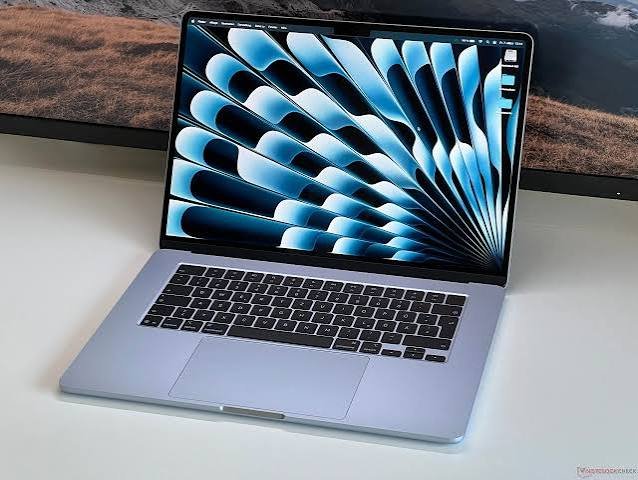
The MacBook Air M5 is an interesting choice for video editors who want portability.
The 13-inch M5 MacBook Air starts with 16GB of unified memory and a 512GB SSD. It can be configured with up to 32GB of memory and 4TB of storage.
It also includes dedicated hardware for H.264, HEVC, ProRes, and ProRes RAW, along with video encode and decode engines.
That hardware is useful for video editing.
What can the MacBook Air M5 handle?
For example, it can handle:
- YouTube videos
- 1080p projects
- Short 4K projects
- Social media videos
- Vlogs
- Interviews
- Basic color correction
- Transitions and effects
- ProRes footage
- H.264 footage
- HEVC footage
For someone creating videos for YouTube or social media, the MacBook Air M5 can be a very capable editing machine.
However, the Air is fanless.
That matters when you are performing long, demanding exports.
MacBook Air vs MacBook Pro for Premiere Pro
This is one of the most important decisions.
A MacBook Air can be excellent for video editing.
A MacBook Pro is designed for heavier workloads.
Choose MacBook Air if you:
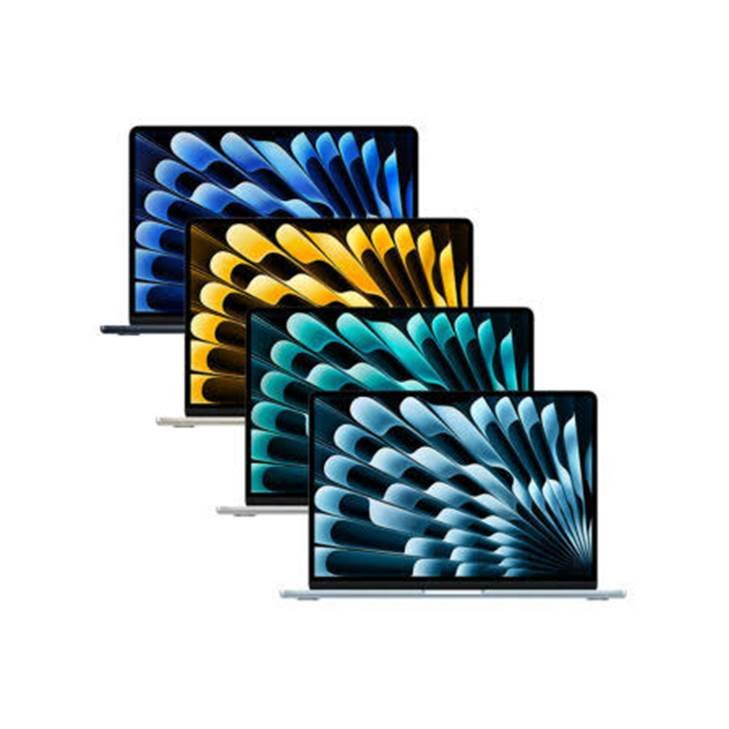
- Edit videos occasionally
- Create YouTube videos
- Mostly work with 1080p
- Edit shorter 4K projects
- Want a lightweight laptop
- Value battery life
- Have a limited budget
Choose MacBook Pro if you:
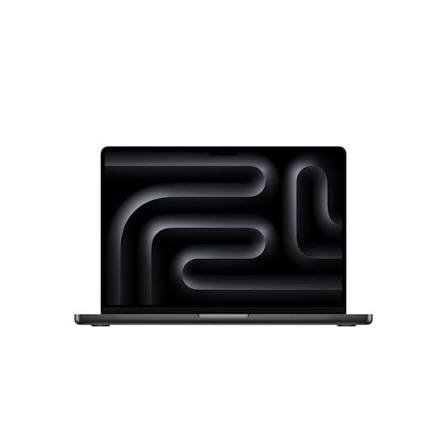
- Edit video professionally
- Work with 4K footage every day
- Work with multiple video streams
- Use lots of effects
- Export large projects frequently
- Work with RAW footage
- Use Premiere alongside After Effects
- Need more memory
The Pro’s active cooling system is particularly useful for long workloads because the computer can sustain high performance for longer periods.
Is 16GB RAM Enough for Premiere Pro?
Yes, for many users.
Adobe currently recommends 16GB of unified memory for Premiere Pro on Apple silicon Macs.
That makes 16GB a reasonable starting point.
But your workload matters.
16GB
Good for:
- 1080p editing
- YouTube videos
- Short 4K projects
- Basic effects
- Social media content
- Student projects
24GB or 32GB
Better for:
- Frequent 4K editing
- Larger projects
- Multitasking
- Premiere and Photoshop together
- Premiere and After Effects together
- More complicated timelines
48GB or more
Useful for:
- Professional video production
- Very large projects
- Heavy effects
- Multiple demanding applications
- High-resolution workflows
Don’t buy more RAM simply because the number looks impressive.
Buy it because your projects actually need it.
How Much Storage Do You Need for Premiere Pro?
Storage is easy to underestimate.
Premiere Pro itself isn’t the only thing using your SSD.
Video files can take up enormous amounts of space.
A few large projects can quickly consume hundreds of gigabytes.
For that reason, I’d recommend:
512GB minimum
1TB preferred for regular video editing
2TB+ for heavy professional workflows
Adobe recommends a fast internal SSD for the application and cache, plus an additional high-speed drive for media.
An external SSD can therefore be a useful part of your editing setup.
It lets you keep large video libraries off your MacBook’s internal storage.
Can MacBook Air Run Premiere Pro Smoothly in 4K?
Yes, but there are some limits.
The M5 MacBook Air has hardware video engines designed for common professional video formats, including H.264, HEVC, ProRes, and ProRes RAW.
For normal 4K projects, the Air can be perfectly usable.
However, complicated 4K timelines can become much more demanding.
For example, performance may drop when you combine:
- Multiple 4K video tracks
- Heavy effects
- Color grading
- Noise reduction
- Stabilization
- Motion graphics
- High-resolution RAW footage
- Several applications running simultaneously
If this describes your normal workflow, a MacBook Pro is the safer choice.
What About 8GB RAM?
This is where you should be careful.
Adobe’s current recommended specification for Apple silicon is 16GB unified memory.
So while a Mac with 8GB may technically run Premiere Pro, I would not choose 8GB if you’re buying a MacBook specifically for video editing.
Premiere Pro is only one application.
Your Mac also needs memory for macOS, your browser, background applications, plugins, and other editing tools.
If your budget allows it, start with 16GB.
Does Premiere Pro Run Better on MacBook Pro?
For demanding workloads, a MacBook Pro generally makes more sense.
The advantage isn’t simply that it says “Pro.”
The higher-end MacBook Pro models can be configured with much more unified memory and more powerful Apple silicon chips.
That’s useful when your workload stays heavy for long periods.
If you’re exporting a five-minute YouTube video occasionally, you probably don’t need a high-end MacBook Pro.
If you’re editing multiple 4K projects every day for clients, the extra performance can be much more valuable.
Is MacBook Good for YouTube Video Editing?
Yes.
A MacBook is a popular option for YouTube creators because modern models combine strong performance with good battery life and portable designs.
For a typical YouTube creator, a MacBook Air M5 with 16GB memory and 512GB or 1TB storage can be enough.
You can edit:
- Talking-head videos
- Tutorials
- Reviews
- Vlogs
- Interviews
- Product videos
- Short-form content
If your channel involves complicated 4K productions, heavy effects, or frequent exports, consider stepping up to a MacBook Pro.
Can MacBook Run Premiere Pro and After Effects Together?
Yes, but this is where memory becomes increasingly important.
Running Premiere Pro and After Effects at the same time can use considerably more memory than running Premiere alone.
Add Chrome, Photoshop, music, and other applications, and 16GB can become limiting.
For this type of workflow, 24GB or 32GB is a more comfortable target.
Professional editors who regularly use several demanding Adobe applications may want even more memory.
Should You Buy a MacBook Air or MacBook Pro for Premiere Pro?
The answer depends on how serious your editing is.
Get the MacBook Air M5 if:
- You’re a beginner
- You edit YouTube videos
- You mostly edit 1080p
- You occasionally edit 4K
- You want a portable laptop
- You don’t export huge projects every day
- You want to spend less
Get the MacBook Pro if:
- You’re a professional editor
- You edit 4K every day
- You work with RAW footage
- You use After Effects regularly
- You work with complicated timelines
- You frequently export large projects
- You need lots of RAM
Does Premiere Pro Work Well on Apple Silicon?
Yes.
This is one of the biggest reasons modern MacBooks are attractive for video editing.
Premiere Pro has native Apple silicon support, so current Apple silicon Macs don’t need to rely on Rosetta to run Premiere. Adobe also notes that its video and audio products no longer support Rosetta starting with version 24.0.
Adobe’s current macOS compatibility information lists Premiere 26.5 and later as compatible with macOS 27 Golden Gate.
So the current software ecosystem is well aligned with Apple silicon Macs.
What About Older M1 and M2 MacBooks?
Older Apple silicon Macs can still run Premiere Pro.
Adobe’s current requirements list Apple silicon M1 Pro, M1 Max, M1 Ultra, or newer as the recommended processor level for Premiere, while the minimum Apple silicon requirement is lower.
An M1 or M2 MacBook with 16GB of memory can still be useful for video editing.
But if you’re buying new in 2026, compare the price carefully.
A discounted older Mac can make sense if the savings are substantial.
If the price is close to a newer model, the newer hardware is usually the more sensible comparison.
How to Make Premiere Pro Run More Smoothly on MacBook
Even a powerful Mac can struggle with a poorly optimized project.
Here are some simple ways to improve performance.
1. Use Proxies
Proxies replace high-resolution footage with lower-resolution editing files.
This can make complicated projects much easier to edit.
You can then switch back to the original footage for the final export.
2. Keep Plenty of Free Storage
Don’t fill your internal SSD completely.
Premiere needs space for cache files and other temporary data.
An external SSD can help with large media libraries.
3. Close Unnecessary Applications
If Premiere is struggling, close applications you aren’t using.
Especially browsers with dozens of open tabs.
4. Use a Suitable Preview Resolution
You don’t always need to preview your footage at full resolution.
Lowering the playback resolution can make editing smoother.
5. Keep Premiere Updated
Adobe regularly releases updates that can improve compatibility and fix bugs.
Before updating macOS, however, check that your important plugins and workflows are compatible. Adobe specifically recommends checking third-party plugins when upgrading macOS.
So, Can MacBook Run Premiere Pro Smoothly?
Yes, absolutely.
Modern Apple silicon MacBooks can run Premiere Pro smoothly for many different types of video editing.
The important part is choosing the right configuration.
For most creators, a MacBook Air M5 with 16GB RAM and 512GB or 1TB storage is a good starting point.
For serious 4K editing, frequent exports, After Effects, RAW footage, and professional workloads, a MacBook Pro with more memory makes more sense.
And if you’re working with extremely demanding projects, the higher-end M5 Pro and M5 Max models provide substantially more headroom.
The key is simple:
Don’t buy the most powerful MacBook just because you can. Buy enough MacBook for the way you edit.
Frequently Asked Questions
Can MacBook run Premiere Pro?
Yes. Premiere Pro runs natively on Apple silicon Macs, and Adobe recommends Apple silicon Macs with 16GB unified memory for optimal performance.
Is MacBook Air good for Premiere Pro?
Yes. The M5 MacBook Air can handle many 1080p and 4K editing workflows. For very demanding professional editing, a MacBook Pro is better suited.
Is 16GB RAM enough for Premiere Pro?
Yes, 16GB is Adobe’s current recommended unified memory level for Apple silicon Macs. Heavier 4K workflows may benefit from 24GB, 32GB, or more.
Is 512GB enough for Premiere Pro?
It can be, but 1TB is more comfortable for regular video editing. Large projects and media libraries can quickly consume storage.
Can MacBook Air edit 4K video?
Yes. Modern Apple silicon MacBook Air models have dedicated media engines and can handle many 4K editing workflows.
Is MacBook Pro better for Premiere Pro?
For demanding and sustained workloads, yes. MacBook Pro models provide more performance and memory options, making them better suited to professional editing.
Does Premiere Pro work natively on Apple silicon?
Yes. Adobe lists Premiere among its applications that run natively on Apple silicon Macs.
Final Verdict
MacBooks can run Premiere Pro smoothly in 2026.
For beginners and many YouTube creators, the MacBook Air M5 with 16GB RAM is already a capable video-editing laptop.
If you’re doing professional 4K editing, working with RAW footage, using After Effects, or handling large projects every day, step up to a MacBook Pro with more memory and storage.
For most buyers, the sweet spot is simple:
16GB RAM + 512GB minimum storage
And if video editing is a major part of your work:
24GB or 32GB RAM + 1TB storage is a more comfortable long-term setup.
The MacBook isn’t the limiting factor by itself. Your project’s resolution, effects, footage format, RAM, storage, and workflow all determine how smoothly Premiere Pro performs.