

As an Amazon Associate, I earn from qualifying purchases
Best MacBook Pro Screen Cleaning Kits at a Glance
| Cleaning option | Best for | Main benefit |
| WHOOSH! Screen Cleaner Kit | Screen-cleaning kit buyers | Cleaner and microfiber cloth |
| MagicFiber Microfiber Cloths | Everyday cleaning | Simple, reusable cloths |
| Apple Polishing Cloth | Supported Apple displays | Premium polishing cloth |
| OXO Good Grips Sweep & Swipe | Screen and keyboard care | Brush and microfiber tool |
| Basic soft microfiber cloth | Budget buyers | Affordable, simple cleaning |
These options serve different purposes. Before buying a liquid cleaner, remember that Apple specifically recommends water and a soft, lint-free cloth for cleaning MacBook Pro laptop screens. A screen cleaner marketed as safe for electronics is not automatically approved for every MacBook display.
WHOOSH! Screen Cleaner Kit — Best Complete Kit to Consider

WHOOSH! is a screen-cleaning brand that sells cleaning solutions and microfiber cloths for electronic displays.
Its screen cleaner kit is worth considering if you want a ready-made cleaning set rather than buying each item separately.
The kit can be useful for cleaning compatible screens, including phones, tablets, and external monitors. However, there is an important distinction when using it on a MacBook Pro.
Apple’s recommended routine for a MacBook Pro laptop screen is a soft, lint-free cloth dampened with water only. WHOOSH! is a third-party product, so check the cleaner’s instructions and your display type before using it
Why consider it?
- Includes a screen-cleaning solution and cloth, depending on the kit
- Convenient for cleaning multiple compatible devices
- Designed for removing fingerprints and smudges
- Useful for people who regularly clean their electronics
What should you know?
Do not assume that a screen cleaner is suitable for every display just because its packaging says it works on laptops.
If you have a standard MacBook Pro display, follow Apple’s specific laptop-screen cleaning guidance first. If your MacBook Pro has nano-texture glass, use Apple’s dedicated instructions for that surface.
Best for: Buyers who want a complete screen-cleaning kit for compatible devices and are prepared to check product compatibility carefully.
- MagicFiber Microfiber Cloths — Best for Everyday MacBook Cleaning
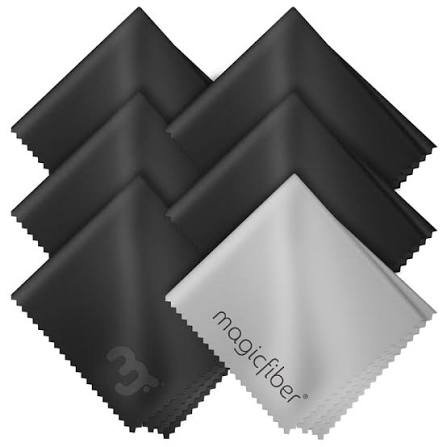
If you want the simplest solution, consider a pack of soft microfiber cloths.
MagicFiber microfiber cloths are one option to compare. They are designed for cleaning delicate surfaces, such as glasses and electronic screens.
For your MacBook Pro, the main advantage is simplicity. You can use a clean, soft, lint-free cloth with water, following Apple’s instructions.
Why microfiber is a good choice
- Helps remove dust and fingerprints
- Can be reused when properly washed
- Does not require a chemical cleaning solution
- Takes up very little space
- Costs less than many complete cleaning kits
A pack of multiple cloths can also be useful. You can keep one at your desk and another in your laptop bag.
Always inspect the cloth before using it. A cloth that has collected grit, dust, or debris may scratch the screen during wiping.
Best for: MacBook Pro owners who want an affordable, simple cleaning solution.
- Apple Polishing Cloth — Best Premium Cloth Option
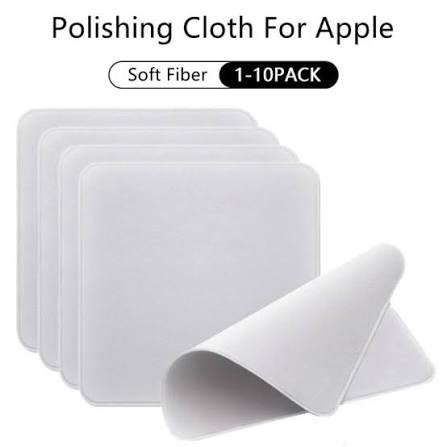
Apple sells a polishing cloth designed for cleaning compatible Apple displays.
It is a premium option for people who prefer an Apple-branded accessory. However, it is important to distinguish between Apple’s general laptop-screen instructions and its special guidance for nano-texture glass.
For a standard MacBook Pro laptop screen, Apple recommends a soft, lint-free cloth dampened with water. For supported nano-texture displays, Apple provides separate cleaning instructions that specify the appropriate polishing cloth.
What makes it worth considering?
- Soft material designed for delicate surfaces
- Reusable design
- Easy to store alongside your MacBook accessories
- Suitable for the display types covered by Apple’s instructions
Is it necessary?
Not for everyone.
A clean, soft, lint-free microfiber cloth may be sufficient for routine cleaning of a standard MacBook Pro screen.
If you own a nano-texture display, however, follow Apple’s specific instructions rather than treating it like an ordinary glossy screen.
Best for: Users who want an Apple-branded polishing cloth, especially those checking the requirements for a compatible nano-texture display.
- OXO Good Grips Sweep & Swipe — Best for Screen and Keyboard Care
Your MacBook Pro screen is not the only part that collects dust.
The keyboard, trackpad, and areas around the display can also accumulate fingerprints and debris.
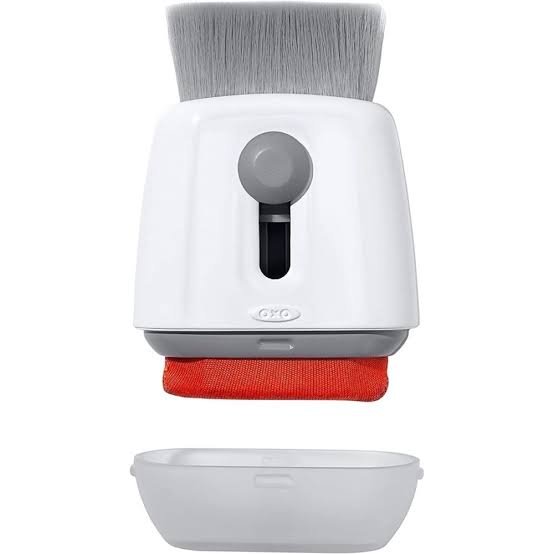
The OXO Good Grips Sweep & Swipe is a cleaning tool worth considering for general electronics care. It combines a brush with a microfiber cleaning surface.
Its main benefit is convenience. You can use the brush to help remove loose dust and the microfiber surface for appropriate cleaning tasks.
Why consider it?
- Combines two cleaning functions
- Useful for removing loose dust
- Compact enough to store near your desk
- Helps you keep your cleaning tools organized
What are the limitations?
This is not a replacement for a proper screen-cleaning cloth.
Use only a clean, soft surface on the display. Do not drag a brush or a dusty cleaning tool across the screen.
Best for: People who want a small tool for general MacBook maintenance as well as screen care.
- A Basic Microfiber Cloth — Best Budget Choice
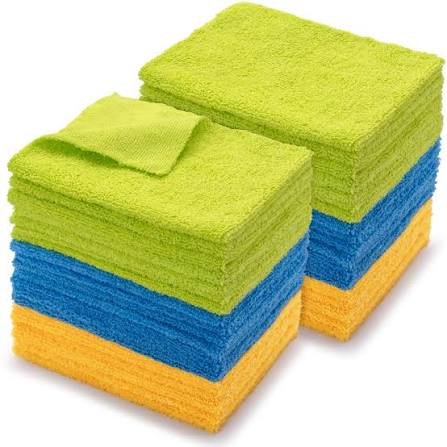
You may not need to buy a complete cleaning kit at all.
If your MacBook Pro screen has light fingerprints or dust, a clean microfiber cloth and a little water may be all you need.
This is also the simplest place to start because it follows Apple’s recommended method for cleaning a MacBook Pro laptop display.
Why choose a basic cloth?
- Low cost
- Easy to carry
- No cleaning spray required
- Suitable for routine cleaning when used correctly
- Less complicated than a large cleaning kit
Choose a cloth that is soft, clean, and lint-free. Avoid using the same cloth for dirty surfaces and your screen.
Best for: Most MacBook Pro owners who want a straightforward way to remove everyday smudges.
What Makes a MacBook Pro Cleaning Kit Safe for the Screen?
Not every product advertised as a laptop cleaning kit is suitable for your display.
Before buying, look at the materials, ingredients, and cleaning instructions.
1. A Soft, Lint-Free Cloth
This is the most important item in your kit.
A good cloth should feel soft and should not leave fibers behind. It should also be clean before each use.
Avoid paper towels, tissues, rough towels, and abrasive cleaning pads. Apple warns against abrasive materials because they can damage surfaces.
2. A Suitable Cleaning Method
For routine cleaning, Apple recommends dampening a soft, lint-free cloth with water only before wiping a MacBook Pro screen.
The cloth should be damp, not dripping wet.
You should never spray liquid directly onto the screen. Liquid can run into the display edges or other openings and cause damage.
3. Clear Product Instructions
If you are considering a complete kit, read the manufacturer’s instructions.
Look for clear guidance on compatible display types, how to apply the solution, and which materials are included.
Avoid products with vague claims that they are safe for every electronic device without explaining their intended use.
4. Special Care for Nano-Texture Displays
Some MacBook Pro configurations are available with nano-texture glass.
This surface requires more specific care than a standard display. Do not assume that a cleaner suitable for a regular screen is also suitable for nano-texture glass.
Check Apple’s instructions for your exact display before cleaning it.
How to Clean a MacBook Pro Screen Safely
You do not need complicated equipment to clean your screen. Follow these steps.
Step 1: Shut Down Your MacBook Pro
Turn off your MacBook Pro before cleaning it.
Disconnect the power adapter and any connected accessories. This makes it easier to clean the screen without cables getting in the way.
Apple recommends shutting down and disconnecting power before cleaning a MacBook display.
Step 2: Remove Loose Dust
Look at the screen under good lighting.
If you see loose dust, avoid rubbing it aggressively into the display. Use a clean, soft cloth and gentle movements.
Check the cloth for debris before touching the screen.
Step 3: Dampen the Cloth With Water
For a standard MacBook Pro laptop screen, use a clean, soft, lint-free cloth dampened with water only.
Do not soak the cloth.
You want enough moisture to help remove fingerprints, not enough for water to drip from the fabric.
Step 4: Wipe Gently
Wipe the screen using light pressure.
Work slowly across the display, paying attention to visible fingerprints and smudges.
Do not press hard. Excessive pressure and repeated aggressive wiping are unnecessary.
Step 5: Keep Liquid Away From the Edges
Do not spray water or cleaning solution directly onto the display.
Keep the cloth controlled and avoid allowing moisture to collect near the display edges, keyboard, hinge, or ports.
If liquid enters the computer, stop cleaning and seek advice from Apple or an authorized service provider.
Step 6: Check the Screen
Look at the display from different angles.
If the screen looks clean, stop. Repeated wiping will not necessarily improve the result and may increase the risk of damage.
If a stubborn mark remains, check Apple’s guidance for your specific display before trying another cleaning product.
What Should You Never Use on a MacBook Pro Screen?
Using the wrong product can cause damage.
Apple specifically warns against using window cleaners, household cleaners, aerosol sprays, solvents, ammonia, abrasives, acetone-containing cleaners, and cleaners containing hydrogen peroxide on the screen.
Avoid these common mistakes:
- Window cleaner: Do not assume a product made for glass windows is safe for a laptop display.
- Household cleaning spray: These products may contain ingredients unsuitable for screen coatings.
- Paper towels: Their texture may be too rough for delicate surfaces.
- Abrasive cloths: Avoid materials that can scratch the display.
- Spraying liquid directly onto the screen: Liquid may enter openings and damage the computer.
- Excessive pressure: Pressing hard does not make the screen safer or cleaner.
Can you use alcohol to clean a MacBook Pro screen?
Apple’s guidance distinguishes between routine cleaning and removing stubborn marks.
For routine cleaning of a MacBook Pro laptop screen, Apple recommends water and a soft, lint-free cloth. Its broader cleaning guidance mentions a cloth moistened with a 70-percent isopropyl alcohol solution for certain stubborn marks on a Mac’s display or exterior.
Because the instructions differ by cleaning situation and display type, do not use alcohol as your default screen cleaner. Check the current guidance for your exact MacBook Pro display, especially if it has nano-texture glass.
How Often Should You Clean Your MacBook Pro Screen?
There is no single schedule that works for everyone.
If you use your MacBook Pro every day, you may notice fingerprints more often. If you rarely touch the screen, you may only need occasional cleaning.
A practical approach is to clean it when visible dust or smudges become distracting.
You can reduce how often you need to clean it by following a few simple habits:
- Wash your hands before working.
- Avoid touching the display.
- Store your MacBook in a clean sleeve.
- Keep food and drinks away from your desk.
- Store your cleaning cloth in a clean place.
- Wash reusable cloths according to their care instructions.
Do not clean the screen more often than necessary. Gentle, occasional cleaning is better than constant wiping.
Should You Buy a Complete MacBook Pro Cleaning Kit?
That depends on your needs.
A complete kit may be convenient if you also clean your phone, tablet, and external monitor. It can keep your cloths and cleaning supplies together in one place.
However, you do not need to spend a lot of money just to clean a MacBook Pro screen.
For many users, a quality microfiber cloth is enough for routine care.
If you choose a kit with liquid cleaner, confirm that its instructions suit your particular display. Do not assume that a product is safe simply because it is advertised for laptops.
The most useful cleaning kit is one that makes safe cleaning easier without encouraging you to use unnecessary chemicals.
Frequently Asked Questions
What is the safest cleaning kit for a MacBook Pro screen?
A clean, soft, lint-free microfiber cloth is the simplest option for routine cleaning. Apple recommends dampening the cloth with water only when cleaning a MacBook Pro laptop screen.
Is WHOOSH! safe for a MacBook Pro screen?
WHOOSH! markets screen-cleaning products for compatible electronic displays. However, Apple’s recommended routine for a MacBook Pro laptop screen is a soft, lint-free cloth dampened with water only. Check the instructions for your exact display before using a third-party solution. <Cite refs={[“turn170083search0″,”turn170083search1”]}/>
Can I use a microfiber cloth on my MacBook Pro?
Yes. A clean, soft, lint-free microfiber cloth is suitable for routine cleaning when used according to Apple’s instructions. Avoid rough or dirty cloths.
Can I use Windex on my MacBook Pro screen?
No. Apple warns against window cleaners and household cleaning products on MacBook Pro screens. Use the recommended cloth-and-water method instead.
Can I use alcohol wipes on my MacBook Pro display?
Do not use alcohol wipes as your default cleaning method. Apple’s routine instructions for MacBook laptop screens recommend water and a soft, lint-free cloth. For stubborn marks, consult Apple’s guidance for your exact display before using any alcohol-based product.
How do I remove fingerprints without scratching the screen?
Shut down the MacBook Pro, disconnect its power adapter, and gently wipe the display with a clean, soft, lint-free cloth dampened with water. Avoid excessive pressure and never spray liquid directly onto the screen.
Do I need a special cleaner for nano-texture glass?
Nano-texture glass has specific cleaning requirements. Check Apple’s instructions for your exact display and use the recommended polishing cloth and method rather than assuming a general screen cleaner is suitable.
Final Verdict: Which MacBook Pro Cleaning Kit Should You Buy?
The best MacBook Pro cleaning kit safe for the screen is not necessarily the one with the most accessories.
For everyday cleaning, a clean microfiber cloth is the best starting point. It is simple, affordable, and follows Apple’s recommended approach for standard MacBook Pro laptop screens.
If you want a complete kit, consider WHOOSH! for compatible devices, but check the product instructions and Apple’s guidance before applying a liquid cleaner to your MacBook Pro.
The Apple Polishing Cloth is another option to consider if you prefer an Apple-branded accessory or need the specified cloth for a compatible nano-texture display.
Whatever you choose, avoid harsh household cleaners, abrasive materials, and direct spraying. Shut down your MacBook Pro, disconnect power, use gentle pressure, and keep moisture away from the display edges.
A little care can help keep your screen clean without exposing it to unnecessary risk.