

As an Amazon Associate, I earn from qualifying purchases
The MacBook Pro is one of the most powerful laptops you can buy. It is fast, portable, and has excellent displays.
But even the latest MacBook Pro can benefit from a good hub.
You may need to connect an external SSD, USB keyboard, mouse, monitor, Ethernet cable, camera, or other accessories. A USB-C hub for MacBook Pro can make this much easier.
The right hub can turn your MacBook Pro into a more flexible workstation without adding much bulk to your bag.
But which one should you buy?
In this guide, we look at the best hubs for MacBook Pro in 2026. We will compare their ports, performance, display support, charging, portability, and overall value.
We will also explain what to look for before buying a MacBook Pro hub.
Best Hub for MacBook Pro: Quick Picks
| Hub | Best For | Main Features |
| Plugable 9-in-1 USB-C Hub | Best overall | HDMI, Ethernet, USB-A, USB-C, SD, microSD |
| Anker 555 8-in-1 | Best value | 10Gbps USB, HDMI, Ethernet, SD, microSD |
| Anker 565 11-in-1 | Most connectivity | HDMI, DisplayPort, USB, Ethernet, SD, audio |
| CalDigit Element 5 | Best premium hub | Thunderbolt 5, USB-A, USB-C, up to 90W charging |
| Compact USB-C hub | Best for travel | Lightweight design and essential ports |
- Plugable 9-in-1 USB-C Hub – Best Overall
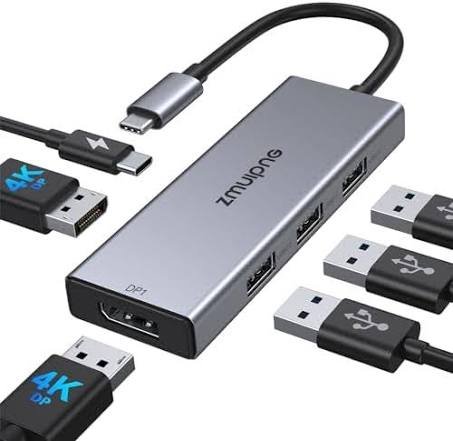
If you want one hub that can handle most everyday tasks, the Plugable 9-in-1 USB-C Hub is an excellent place to start.
It offers a useful mix of ports without becoming as large as a full docking station.
You get connections for HDMI, Ethernet, USB-A, USB-C, SD cards, and microSD cards.
That makes it useful for a wide range of MacBook Pro users.
For example, photographers can use the card reader to transfer photos. Office workers can connect Ethernet and USB accessories. Students can connect a monitor, mouse, and keyboard.
Macworld’s current 2026 USB-C hub guide ranks Plugable’s 9-in-1 model as its top overall USB-C hub for Mac.
Why choose it?
The biggest advantage is balance.
You get many useful ports without paying for a large professional dock.
It is also a good choice if you regularly move between a desk and different locations.
Best for: Most MacBook Pro users
Main advantage: Excellent combination of ports and performance
- Anker 555 8-in-1 – Best Value
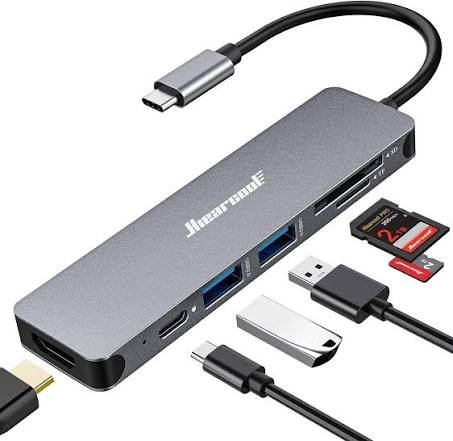
The Anker 555 8-in-1 USB-C Hub is another strong choice.
It is especially appealing if you want plenty of ports without spending money on a premium Thunderbolt dock.
The hub includes two USB-A data ports, one USB-C data port, HDMI, Gigabit Ethernet, SD, microSD, and a USB-C Power Delivery input.
The USB data ports can reach up to 10Gbps. HDMI supports 4K at 60Hz, while the hub supports up to 85W of laptop charging through its PD connection.
This makes it useful for everyday productivity.
You can connect your MacBook Pro to a 4K monitor while using a mouse, keyboard, external storage, and wired network connection.
Why choose it?
The Anker 555 offers the ports many people actually need.
It is also smaller and simpler than a desktop docking station.
Best for: Students, office workers, and everyday users
Main advantage: Great mix of useful ports at a reasonable price
- Anker 565 11-in-1 – Best for More Ports
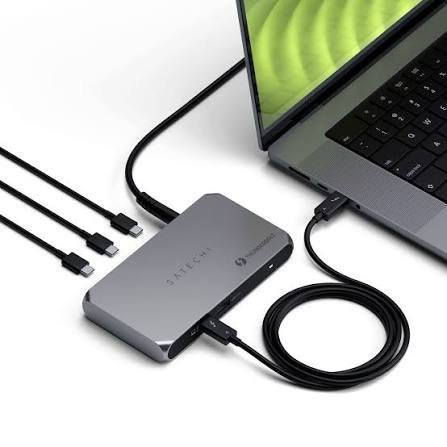
If you hate running out of ports, an 11-in-1 hub can be a better option.
The Anker 565 11-in-1 USB-C Hub is designed for users who want more connectivity from one USB-C connection.
It includes a wider selection of ports than a basic hub. This can be useful if you have several accessories connected to your MacBook Pro at the same time.
For example, you might connect an external monitor, Ethernet cable, USB accessories, storage, and other devices.
The important thing to remember is that having more ports does not automatically mean better performance.
Every hub has bandwidth and power limits.
If you connect several fast devices at the same time, performance can depend on how the hub distributes bandwidth.
Why choose it?
Choose an 11-in-1 hub if you regularly connect many different types of accessories.
It is particularly useful for a home office or productivity setup.
Best for: Users who need lots of connections
Main advantage: More ports in one device
- CalDigit Element 5 – Best Premium Hub
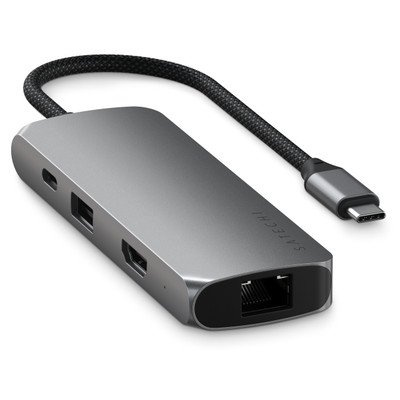
If you have a high-end MacBook Pro and want a high-performance hub, the CalDigit Element 5 Hub is worth considering.
This is very different from a basic USB-C adapter.
It uses Thunderbolt 5 and has one host Thunderbolt 5 connection, three downstream Thunderbolt 5 ports, three USB-A 10Gbps ports, and two USB-C 10Gbps ports. It can provide up to 90W of host charging.
The hub can provide up to 80Gbps bidirectional Thunderbolt 5 performance, with a bandwidth boost of up to 120Gbps for supported display workloads.
That makes it a much better fit for demanding setups.
You could use it with fast external storage, high-resolution monitors, and other Thunderbolt accessories.
It is also compact for the amount of connectivity it provides.
Why choose it?
The Element 5 is ideal if you want a premium desk setup without buying a much larger docking station.
It is more expensive than a normal USB-C hub, but you are also getting much faster connectivity.
Best for: Professional users and demanding workstations
Main advantage: Thunderbolt 5 performance
Do You Need a Hub for MacBook Pro?
The answer depends on how you use your MacBook Pro.
The latest MacBook Pro already has more built-in connectivity than the MacBook Air.
Current models include Thunderbolt ports, HDMI, an SDXC card slot, a headphone jack, and MagSafe charging. The M5 Pro and M5 Max models also use Thunderbolt 5 for their USB-C ports.
So why buy a hub?
Because you may still want more connections.
A hub can let you connect several accessories through one MacBook port.
For example, you might connect:
- An external monitor
- USB-A keyboard
- USB-A mouse
- External SSD
- Ethernet
- SD card
- MicroSD card
- Webcam
- Other USB accessories
A hub can also make your desk setup easier to manage.
Instead of connecting five different cables every time you sit down, you can connect most accessories to the hub.
Then you only need one main connection to the MacBook Pro.
USB-C Hub vs Thunderbolt Hub
This is one of the most important decisions to make before buying.
A standard USB-C hub is usually cheaper.
It is also smaller and often includes ports such as HDMI, USB-A, Ethernet, SD, and microSD.
For basic productivity, that is usually enough.
A Thunderbolt hub is different.
Thunderbolt offers much higher bandwidth. This matters when you use fast external SSDs, high-resolution displays, or several demanding devices at the same time.
For most users, a standard USB-C hub is perfectly fine.
For professional video editors, photographers, developers, and other demanding users, Thunderbolt can be worth the extra money.
What to Look for in the Best MacBook Pro Hub
Not every MacBook Pro hub is the same.
Before buying one, check these features.
1. Check the Ports You Actually Need
Start with your devices.
Do you need HDMI?
Do you use USB-A accessories?
Do you transfer photos from SD cards?
Do you need Ethernet?
Do you connect external SSDs?
Make a list before buying.
There is no reason to spend extra money on ports you will never use.
2. Check USB Transfer Speeds
USB speed matters if you regularly move large files.
A basic USB connection may be much slower than a 10Gbps connection.
If you work with video, RAW photos, or large project files, faster ports can save time.
For normal keyboards, mice, printers, and other simple accessories, speed is less important.
3. Check Display Support
If you want to connect an external monitor, pay close attention to the specifications.
Look for the supported resolution and refresh rate.
For many users, 4K at 60Hz is a good target.
But your MacBook Pro also matters.
The number of external displays supported depends on the chip inside your MacBook Pro.
Apple says the current M5 MacBook Pro can support up to two external displays. M5 Pro models can support up to three, while M5 Max models can support up to four, depending on resolution and refresh rate.
This means you should not buy a hub based only on the number of video ports it has.
Your MacBook’s display limit still applies.
4. Look at Power Delivery
Some hubs can charge your MacBook Pro while you use the other ports.
This feature is called Power Delivery, or PD.
Check the maximum wattage before buying.
Also remember that the advertised PD number may not be the amount your MacBook receives.
Some power is used by the hub itself.
For example, the Anker 555 supports up to 100W input but provides up to 85W to the laptop.
5. Consider Heat
A hub can become warm during heavy use.
This is especially true when you connect several devices at once.
Good ventilation is important.
Avoid covering the hub with clothing or placing it somewhere that traps heat.
6. Think About Portability
If you travel frequently, choose a small hub.
A compact 7-in-1 or 8-in-1 model can fit easily inside a laptop bag.
If your MacBook Pro stays on your desk, size matters less.
In that situation, a larger Thunderbolt hub may make more sense.
Best Hub for MacBook Pro for Students
Students usually do not need an expensive Thunderbolt hub.
A good 7-in-1 or 8-in-1 USB-C hub is often enough.
Look for HDMI, USB-A, USB-C, and possibly SD card support.
Ethernet is also useful if you sometimes need a wired internet connection.
The Anker 555 is a good example because it combines HDMI, Ethernet, USB ports, and card readers in one device.
Best Hub for MacBook Pro for Video Editing
Video editors have different needs.
If you edit large 4K or 8K projects, fast external storage can become very important.
A Thunderbolt hub can be a better choice because it offers more bandwidth than a basic USB-C hub.
The CalDigit Element 5 is particularly interesting for this type of workflow because its Thunderbolt 5 ports can handle high-speed storage and demanding display setups.
However, you should still connect your fastest storage directly to the MacBook when possible if you want the simplest and most predictable performance.
Best Hub for MacBook Pro for Photographers
Photographers should prioritize SD card support.
A built-in SD card slot on the MacBook Pro is already convenient.
But a hub can still be useful if you want to connect other accessories at the same time.
Look for a hub with a fast SD card reader and enough USB ports for your external SSD or other equipment.
If you regularly transfer large photo libraries, do not focus only on the number of ports.
Check the card reader speed too.
Hub vs Docking Station: Which Is Better?
A hub and docking station are not exactly the same thing.
A USB-C hub is usually smaller and designed for portability.
A docking station is usually larger and better suited to a permanent desk setup.
A dock may offer more display connections, more USB ports, Ethernet, audio, storage connections, and dedicated power.
If you travel with your MacBook Pro, choose a hub.
If your MacBook Pro is the center of your home office, a docking station may be a better investment.
Can a MacBook Pro Connect to Multiple Monitors Through a Hub?
Yes, but there is an important catch.
The number of displays you can use depends on your MacBook Pro model, its chip, the display resolution, and the connection technology.
Apple states that M5 Pro MacBook Pro models can support up to three external displays, while M5 Max models can support up to four.
A hub cannot magically increase the maximum number of displays your Mac supports.
You should always check the specifications of both the MacBook and the hub before buying.
This is especially important if you are planning a two-, three-, or four-monitor setup.
Is a Cheap MacBook Pro Hub Worth It?
Sometimes.
A cheap hub can be perfectly fine for simple tasks.
If you only need USB-A and HDMI, you probably do not need a premium Thunderbolt hub.
However, extremely cheap hubs can make compromises.
They may have slower ports, weaker build quality, limited display support, or lower charging performance.
If your MacBook Pro is an expensive work machine, spending a little more on a reliable hub can be worthwhile.
Which Is the Best Hub for MacBook Pro?
The best hub depends on your workflow.
For most people, the Plugable 9-in-1 USB-C Hub is a strong overall choice because it combines several useful ports in a portable design. Macworld currently ranks it highly among USB-C hubs for Mac.
The Anker 555 8-in-1 is a great option if you want strong everyday connectivity without moving to a premium Thunderbolt setup.
The Anker 565 11-in-1 makes sense if you need a larger selection of ports.
For demanding professional users, the CalDigit Element 5 is the better choice because of its Thunderbolt 5 bandwidth and high-speed connectivity.
Frequently Asked Questions
What is the best hub for MacBook Pro?
The Plugable 9-in-1 is one of the best all-around choices. It offers a useful selection of ports for monitors, storage, Ethernet, and USB accessories.
Do USB-C hubs work with MacBook Pro?
Yes. USB-C and Thunderbolt hubs can work with compatible MacBook Pro models. However, features such as display output and charging depend on the MacBook and the hub.
Is Thunderbolt better than USB-C for MacBook Pro?
Thunderbolt offers higher bandwidth and is better for demanding devices such as fast external SSDs and multiple high-resolution displays. For basic accessories, a standard USB-C hub is usually enough.
Can a hub charge my MacBook Pro?
Many hubs support USB-C Power Delivery. However, charging speed depends on the hub, charger, MacBook model, and other devices connected to the hub.
Can I connect two monitors to a MacBook Pro hub?
Yes, depending on your MacBook Pro model and the hub. Current M5 MacBook Pro models support up to two external displays, while M5 Pro and M5 Max models support more.
Do I need a Thunderbolt 5 hub?
Not necessarily.
A Thunderbolt 5 hub is most useful if you need very high bandwidth for external storage, high-resolution monitors, or demanding professional workflows.
For normal office work, a less expensive USB-C hub can be enough.
Final Verdict
The best hub for MacBook Pro is not necessarily the one with the most ports.
The best choice is the one that matches your workflow.
For everyday users, an 8-in-1 or 9-in-1 USB-C hub is usually the sweet spot.
For students, office workers, and travelers, the Anker 555 is a practical option with HDMI, Ethernet, USB, and card readers.
For users who want more connections, an 11-in-1 hub can make sense.
For professional users who work with fast SSDs, multiple displays, and large files, the CalDigit Element 5 is a much more powerful option. Its Thunderbolt 5 connection provides up to 80Gbps bidirectional bandwidth, with up to 120Gbps available in supported bandwidth-boost scenarios.
Before you buy, check four things: ports, speed, display support, and charging.
If those four areas match your needs, you are much more likely to get a hub that works well with your MacBook Pro for years to come.
[…] Best Hub for MacBook Pro […]